BIOS and Emulator Core Management
Some emulated systems require BIOS files to run games. Without the correct BIOS files, games for those systems will fail to launch. The plugin can download BIOS files directly from your RomM server.
Which BIOS files a system needs depends on the emulator core in use — some cores need BIOS, some don't. Because the two concerns are related but independent, the plugin presents the active core and its BIOS state together in one place: the Platforms tab of the Library page, where picking a platform on the left shows everything about it on the right. Core selection and BIOS file management can each be used on their own — they share a pane only because the active core determines which BIOS files matter.
What Are BIOS Files?
BIOS (Basic Input/Output System) files are firmware dumps from original hardware. Emulators need them to accurately simulate the console's boot process. Common examples:
- PlayStation —
scph5501.bin(and other regional variants) - Dreamcast —
dc_boot.bin,dc_flash.bin - Saturn —
sega_101.bin,mpr-17933.bin
Not all systems need BIOS files. Cartridge-based systems like Game Boy, SNES, and Genesis typically work without them.
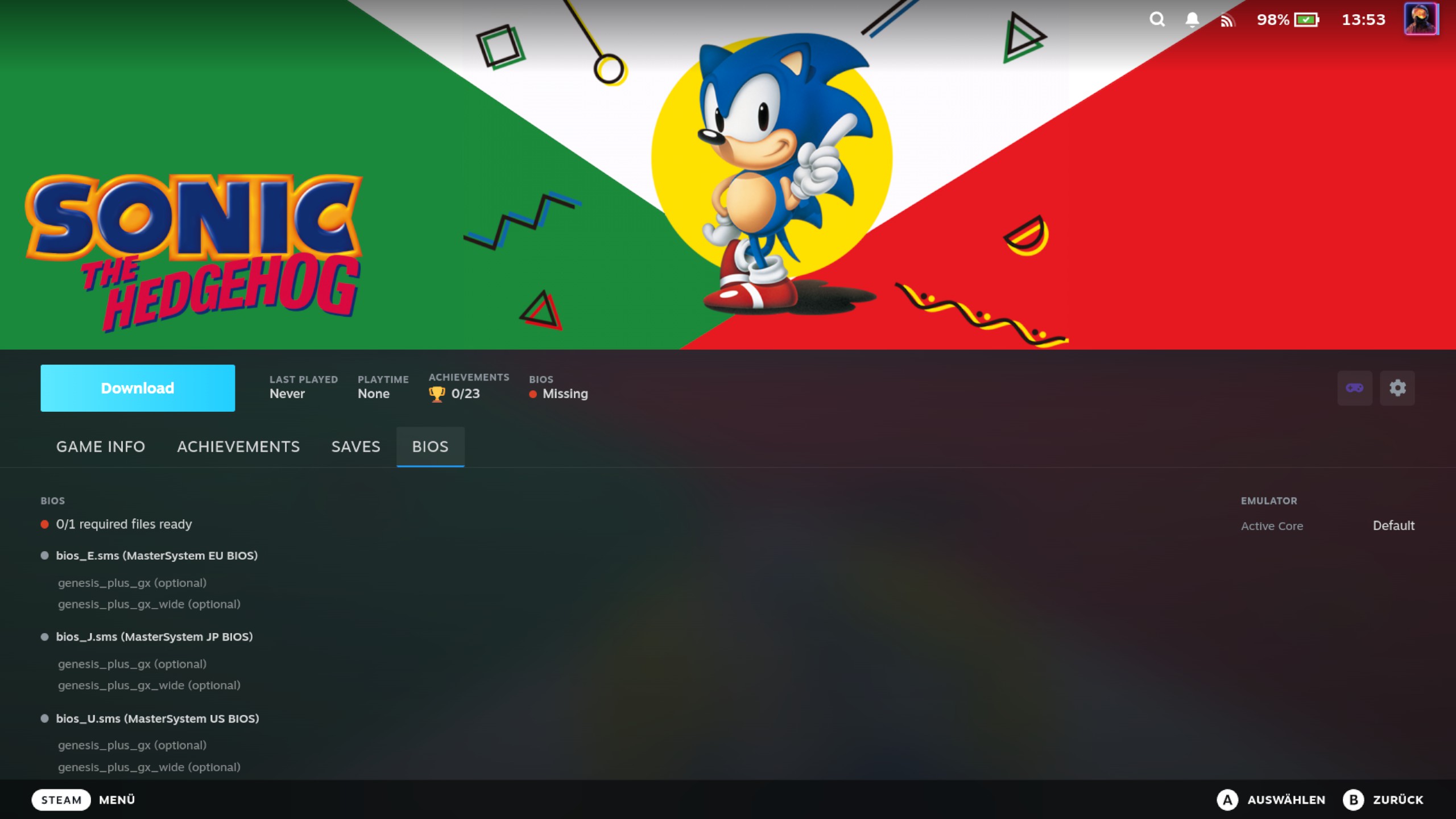
BIOS Status on the Game Detail Page
When you open a game whose platform has BIOS files — on your RomM server, or asked for by the emulator that will run it — the game detail panel's BIOS tab shows the readiness line. Its dot color reflects the same unknown/ok/partial/missing verdict used everywhere in the plugin:
- Green — nothing required is missing: "All 2 files mGBA requires are in place", or "mGBA marks none of its BIOS files as required (3/5 RomM library files)" when the emulator you launch with lists no file it needs. An emulator that asks for exactly one file — DuckStation, on a stock RetroDECK — reads "The one file DuckStation requires is in place". A line saying the required files are in place can end in "(2 optional missing)": files that same emulator lists as optional and that are not in place. Another emulator's optional files are not counted there.
- Orange — some required files present: "1 of 2 files mGBA requires are in place"
- Red — no required files present yet ("The one file DuckStation requires is not in place" where there is only the one), or "mGBA cannot start this system without a BIOS image" where the console itself will not start without one of them (see When the console needs a BIOS image)
- Grey — no readiness claim, in one of two wordings: "Nothing could be established about what mGBA needs", where the plugin could not work the requirement out at all (see When the requirement is unknown), or "One file mGBA requires could not be checked", where it knows the requirement and could not settle whether you have it (see When readiness cannot be stated)
Every one of those sentences is written in one place and both surfaces read it, so the game page and the Library page's platform pane can never word the same state differently. The pane has a heading to hang a short form on, so it shows that short form beside BIOS FILES — "Nothing required", "Readiness unknown", "1 / 2 required" — with the sentence under it. Both pages put the same library ratio behind the sentence, whichever state it is in, and neither prints one where your library holds nothing for the platform.
The sentence says what the dot says, and both are about the required files. Where the system has none, the dot is green because nothing required is missing — so the line says that the emulator you launch with requires none of the files it names, and the ratio beside it is inventory, counting the files your RomM library holds and how many of them you have. It is not a readiness score, and those files are not "optional" either: an emulator you are not launching with may well require one.
The line says whose requirement it is on purpose, and it is a statement about the emulator, not about the console. It names that emulator, and the name is the one the rest of the line was worked out for — the same pick the counts beside it were filtered by, so the sentence and the numbers can never be about two different emulators. Where the plugin could not settle on one, the line says "The launching emulator marks none of its BIOS files as required" instead. Whether the console itself starts without a BIOS image is a separate question with a line of its own (see When the console needs a BIOS image), and where nothing is recorded about the console the plugin says nothing about it either — so a line reading only "nothing required" would have claimed an all-clear nobody gave.
Where the line says how many of the required files are in place, it can carry two counts, and they count different things. The sentence counts the files the emulator you launch with requires, every one of them whether your RomM library holds it or not — a required file you cannot download is still required. The ratio in brackets, where there is one, is always your library's: how many of the files it holds for the platform are already in place. So "1 of 2 files mGBA requires are in place (3/5 RomM library files)" is one count of each kind, and the two need not agree: a required file your library does not hold is counted in the sentence and never in the ratio, and a library file the emulator does not require is counted in the ratio and never in the sentence. A file your library does not hold still gets its own row wherever it matters — a file this game requires, or one the console itself needs, is listed whether your library holds it or not.
The readiness line is computed against the active core for that game — so switching to a core that needs no BIOS (or that treats a file as optional) clears the warning, while switching to a core that requires a missing file surfaces it.
Under the line the tab lists, one per row, the files an installed emulator asks for that this game gives you something
to do or to know about. The rest are counted on lines of their own below them rather than listed — one line for the
files an installed emulator asks for that this game does not need and no page can fetch, and one for the files in your
RomM library that no emulator was found to ask for, worded by whether the emulator you launch with could be read (see
below). A row is headed by the file the emulator declares, with its folder where it asks for one (dc/dc_boot.bin) —
that is where the file has to go, and it is the one thing you need when placing one by hand. Whatever the emulator's
packager wrote about the file follows the name on the same line, in the packager's own wording and punctuation —
scph5500.bin (PS1 JP BIOS) — and only where it says something the name does not: those descriptions usually repeat the
file name, and many are nothing else. Where the file also has something to say about its state, that comes last, behind
a dash: scph5500.bin (PS1 JP BIOS) — missing, not in
your RomM library. It is the emulator's own wording — a
RetroArch core's description file — and it is shown for no other source. Where the plugin's own card stands in for an
emulator that ships no description of its own, that card explains the requirement in full sentences, which is a
paragraph on a line meant for a few words; the row shows the file and its state instead.
Beside the Play button there is also a short BIOS badge, which is a shortcut into this tab. Two things raise it, and nothing else does. The first: a file the active core requires is shown to be absent from your BIOS folder. If that core requires nothing, or requires only files you already have, there is no badge — however many optional files are missing, and whether or not the requirement could be worked out at all. A required folder counts here like any other requirement: once the plugin has established that it holds no BIOS image, the badge appears, because what satisfies the requirement is a file inside the folder and there is none. What raises no badge is a requirement nothing could settle — a folder the plugin could not read, say — since it has not shown anything to be absent. Those cases are worth reading, but not worth a warning next to Play, so they live in the tab.
The second: the console itself does not start without one of the images the core declares, and none of them is in place — the state the tab words "SwanStation cannot start this system without a BIOS image" (see When the console needs a BIOS image). No count can express that one, because the core marks every such image optional, so without it the badge stayed silent on a PlayStation where nothing would launch. It follows the same rule as the first: shown to be absent raises it, not-yet-established does not.
The badge is always red. It is a warning, not a status: the four-colour dot above belongs to the tab's readiness line, and every state that raises the badge is one where firmware the emulator needs is not there. Having one of three required files is not a milder version of the problem, so it does not get a milder colour, and neither does a console that will not boot. The badge does not predict whether a game starts — that is between the emulator and the file, and the declaration the badge counts is not what decides it.
A BIOS warning only ever disappears on an answer. When a check cannot be run at all — most often right after a BIOS download or delete, before the state has been read again — the plugin keeps showing the last status it knew rather than reporting "no BIOS needed". So a check that could not be completed never quietly clears a missing-BIOS warning and lets the game launch without its files; it leaves the warning where it was.
"The requirement is unknown" is itself an answer, and a different one. A check that ran and could not establish what the system needs says so on the page — grey dot, "Nothing could be established about what mGBA needs" — instead of hiding the BIOS tab. Hiding it would say the system needs nothing, which is exactly the claim that could not be made. Every PS3 game is in that position, since RPCS3 is not a RetroArch core and cannot be asked.
It does not leave it there indefinitely, though. Whenever the game detail page is shown a BIOS state it could not work out — when the page opens, after switching the emulator core, after switching to another version of the game — it asks again in the background and fills the answer in a moment later. So a game opened while its requirement is still unread gets its BIOS tab a beat after the rest of the page, and a core or version switch settles on the new core's or new version's readiness rather than the one before it.
An unreachable RomM server usually does not put the plugin in that position. Everything the readiness line needs is local: which emulator is active comes from your RetroDECK configuration, what that emulator needs comes from the emulator itself, and what you already have comes from your BIOS folder. Your server contributes the download — so while it is unreachable you still see what is needed and what is missing, you just cannot fetch anything, and files that exist only in your RomM library are not listed.
Below the readiness line the tab lists individual files — not every file the platform has, but the ones this game gives you something to do or to know: files the emulator you launch with requires, files the console itself will not start without one of, files you already have, files you can still download, and files the plugin could not judge. What is left over — an installed emulator names it, this launch does not require it, it is not there, and no page offers a download for it — is counted on one line instead: 6 more files an installed emulator asks for — none required for this launch, none to download; the Library page's Platforms tab lists them.
A Dreamcast is the everyday case. Flycast also emulates Naomi and AtomisWave, so it declares six arcade BIOS files beside the two the Dreamcast itself needs, and none of the six is anything a Dreamcast game's page could act on. The Platforms tab of the Library page lists every file without exception — that is where BIOS files are managed, and it is the page the summary line points at.
Each row shows whether that file is present or missing, and lists the cores that use it (e.g. Beetle PSX HW (required), PCSX ReARMed (optional)); the active core's line is highlighted in amber so you can spot at a glance which core's requirements the file applies to.
A core's word for a file is the core's own, and the plugin prints it unchanged. Where a core marks every file it asks for optional and its console does not start without one of them, the line states that instead, with the count: SwanStation (needs one of its 5 BIOS files). That is the whole requirement in one line, and this is the only line that can hold it — the readiness line above says "at least one" without a number, and each row below describes a single file.
A RetroArch core can mark a file needed or optional and nothing else, so an author who knows the console needs one of these images has only those two words to choose from. Cores that took the other route are untouched: Beetle PSX marks three of the same five images required, which already says the console needs firmware, so its lines read exactly what its description file says — Beetle PSX (required) for those three, Beetle PSX (optional) for the other two. A core whose console the plugin holds no record for says nothing extra either. See When the console needs a BIOS image for what the line above the list does with all of this.
Files in your RomM library that no emulator was found to ask for are not listed one by one. One line below the list counts them instead, worded one of two ways — every one of those files turns on the same question, whether the emulator you launch with could be read, so they all get the same answer:
- "3 files on server no installed emulator asks for" — the emulator you launch with was read, and none of the emulators RetroDECK offers for the system was found to ask for these files. That is a finished answer for this launch, and not a promise about every emulator you have installed: another one the plugin could not read may still want one of these files, and that does not keep the file off this line.
- "1 file on server nothing installed could answer for" — the emulator you launch with could not be read, or the plugin could not tell which emulator that is, so nothing could be said about these files either way.
A file your emulator needs that is not in your RomM library is listed too, marked not in your RomM library. The plugin cannot fetch it — nothing in it can — so it is shown for what it is rather than left out. Adding the file to RomM makes it downloadable like any other.
Not holding a file is a different question from not having it, and the row says both. If it is also absent from your BIOS folder it reads missing, not in your RomM library; if it is already sitting there it reads only not in your RomM library, with the green dot every present file gets.
A red row has a second cause worth knowing about. Where the plugin could not look at the place a file goes at all — broken permissions, or storage going bad — the row says its location could not be read rather than calling the file missing, so you know to check the folder instead of hunting for a download. It still counts as not ready, because an emulator will not get in there either.
Where a file is there and the emulator looked at its contents, the row says what came of that, because "not ready" covers three quite different situations and only one of them is a problem you can fix by downloading:
- the emulator does not recognise this file — it read the file and no list it keeps matches these bytes. That is not a failure: DuckStation starts such an image and calls it an unknown BIOS. It is also not a clean bill of health, which is why the row stays neutral rather than going green — a dump nobody has catalogued and a wrong file look the same from here.
- its bytes could not be read — the plugin asked for the contents and did not get them. This says nothing about whether your emulator can read the file; it says this plugin could not.
- the emulator refuses a file of this size — your emulator will not even open it, so whatever is in it, the game will not start from it. This one is red, and the fix is a different copy of the file rather than a different setting.
Some rows say something better than that. Where the file sitting at the destination is byte-for-byte the copy your
emulator distribution ships, the row names the distribution instead — provided by RetroDECK — because it is the
distribution's file, and if it ever went missing the repair is a RetroDECK component reset rather than a download.
dolphin-emu/Sys/codehandler.bin is the usual example, and that one no library holds; others are perfectly ordinary
files you may well have in RomM too, and the row still names the distribution, because whose copy is at the destination
is the more useful fact. The name is printed exactly as the plugin's emulator-knowledge library writes it.
A row can also be a folder rather than a file — LRPS2 asks for pcsx2/bios, which is where your PS2 BIOS files go.
A folder is satisfied by what is inside it, never by the folder being there, so the plugin opens the files in it and
reads them the way the core does:
- A folder holding a PS2 BIOS image is green, and the row lists what it found underneath itself, one image per line and in the emulator's own words — USA v02.00(14/06/2004) Console 20040614-100909 and so on for each. The core needs exactly one of them, so none is marked required, and which one your emulator loads is a core setting the plugin does not read.
- A folder holding no image is red, exactly like a missing file: holds no BIOS image. That is the honest answer for a PS2 system that will not boot, and it is what the red BIOS badge beside Play appears for. The plugin does not always have to read the files to say it — a folder holding nothing even the right size for a BIOS is answered by their sizes alone — and the row reads the same either way.
- Where the read could not finish — a file whose bytes would not come back, a folder that could not be listed in full, or an image the plugin's identity table and the emulator's own check disagree about — the row says so and gets an amber dot, and the system's readiness line declines (see When readiness cannot be stated below). Nothing is being claimed either way.
A folder that is absent is red like any other requirement that is not there, with no note beside it: there is
nothing to have found, so there is nothing to say. It is never offered as a download either — what the emulator opens
there is a folder, so there is no file to fetch into it. On a stock RetroDECK that will not happen for pcsx2/bios,
which RetroDECK links onto the BIOS folder itself. (The Library page's platform detail words that row Missing, because
it spells absence out where this tab leaves it to the dot.)
Library › Platforms
The Platforms tab of the Library page holds everything about one system: its sync toggle, the active emulator core, the BIOS files that core needs, and the two ways to take the platform back out of Steam. The list on the left holds every platform your RomM server reports with at least one ROM, in two groups — Synced above Available — and the row you focus is the one the right-hand pane describes.
- From the main QAM page, tap Library, then move to the Platforms tab with L1/R1
- Each row is a coloured dot, the platform's name and the sync toggle. The dot is the BIOS state at a glance — green ready, amber partly there, red missing, grey where there is nothing to say — and the numbers behind it are on the right-hand pane, which also states them in full. With a mouse, hovering the row states it in a sentence — once the platform has been read, the same sentence the pane shows
- The dots fill in one platform at a time, from the top, and the platform you are on is always looked at next — so the pane you have open does not wait behind the rows above it. A row that is still being checked draws its dot as an outline rather than a filled circle, and its pane says "Checking what this platform needs…"; that is why a grey filled dot can be trusted to mean "nothing to say" rather than "not looked at yet" (a read that failed says so in the pane). Checking one platform takes a tenth to half a second on a Steam Deck, so a library of thirty is done in a few seconds, and leaving the page stops the work
- Move down the list to pick a platform; the pane on the right changes with the focus
- The pane's first line names the platform, how many ROMs it has on RomM, how many are in Steam, and the emulator it launches with — by name, in grey when it is the platform's default and in gold when you have picked something else. If it reads RetroDECK decides, the plugin could not pin any of this platform's emulators — they may need setting up, or ES-DE's command for them is not one the plugin can bake — so RetroDECK chooses one itself when a game starts. If it reads no emulator installed in red, the emulator RetroDECK would have fallen back to is not on this machine, and the sentence below names it. If it reads no emulator in red, RetroDECK has none for this platform at all. The sentence below the line says which of the three it is
- The chip button at the right of that line opens a menu of the platform's emulators — the same button, in the same two colours, as the one on a game's page. It is always there: it opens the menu whenever there is more than one emulator to choose between — also before the platform's first sync, so you can pick before its games reach Steam — and is greyed out otherwise, with the reason shown if you hover it. Where the reason is a problem rather than simply nothing to choose — no emulator for the platform, or RetroDECK not found — a line under the header says so as well, since a tooltip needs a mouse
- BIOS files states how many required files are ready (e.g. "1 / 2 required") when the system needs any, and otherwise names the emulator and says it marks none of its BIOS files as required. Under that heading is the same sentence the game page shows, with your RomM library's own inventory behind it (e.g. "(3/5 RomM library files)"). Where no emulator can be pinned for the platform there is no name to print, and the line says "The launching emulator" instead. A console that will not start without one of the listed images, with none of them in place, reads "Needs at least one BIOS file", and the line under it names the emulator whose images are missing — see When the console needs a BIOS image. A system with a required row the plugin could not judge — a declared folder it could not read, say — reads "Readiness unknown" instead — see When readiness cannot be stated. Everything here is about the emulator named on line 5: pick a different one from the chip button and the numbers, the dot and the file rows are answered for it, so this pane and a game's BIOS tab tell you the same thing about one platform. That holds for a standalone emulator too — PCSX2, DuckStation, Cemu and melonDS are asked like any RetroArch core. Where the plugin has no source for the emulator, the files are shown against every emulator that declares them instead of against one
- Below it, a table lists the files themselves: the file, whether it is on disk, and its contents. Where
the emulator asks for the file in a subfolder, the folder is shown in front of the name (
dc/dc_boot.bin) — that is where it has to go, and it is the one thing you need when placing a file by hand. The description in parentheses is printed under the row rather than beside the name, as it is on a game's page: this column is narrow enough that anything after the name would push the name itself off the row. Like there, it is shown only where the emulator itself wrote it. On disk holds marks and no words. The first mark carries two things — a green ✓ for a file that is there and required, a red ✗ for one that is required and is not, and the paler green ✓ / grey ✗ for a file the core you launch with does not need either way. Amber means nothing could be established: outside the group below, a ✓ or ✗ in amber is a file whose presence is known but whose need nothing could establish — no emulator was found to ask for it, and the emulator you launch with could not be read or named — and a?is a row that could not be checked at all. Where the system needs one of several images (see When the console needs a BIOS image) those rows are marked as the group they are: a red ✗ on each while none is in place, and once you have one of them that row turns green ✓ and the others go grey, because from then on they really are spare. Where whether one of them is in place could not be settled, each one that is not there reads an amber ✗ instead. A violet ⊘ appears beside that mark — never in place of it — when your RomM library does not hold the file: a file you already have keeps its green ✓, one you still need keeps its red ✗, and the ⊘ adds that the plugin cannot fetch it for you. A legend under the table, one line per mark, names the marks that are actually on it. Anything else a row has to say is printed under the row rather than in the column — that a file was provided by RetroDECK, that a folder holds no image, that a location could not be read - Contents answers for a required folder: how many BIOS images it holds — and the images themselves are listed under the row, in the emulator's own words so you can match one against its picker — or that it holds none, or that its contents could not be established. A plain file reads an em dash in this column, which must not be read as "checked, and nothing there": filling it for file rows is still to come. Where the emulator did look at a file's contents, what came of that is printed under the row with the rest of its notes
- A Download button sits on every row that is missing and in your RomM library, and a Delete button on every
row this plugin downloaded and still has on disk — that is the only thing it will remove, so a file your emulator
came with never offers one. A folder row (PS2's
pcsx2/bios) offersDelete (N)for the files we downloaded into it. While a download runs, the button you pressed becomes a spinner and the other download buttons grey out; when it finishes the list re-reads itself. If it fails, that button turns red and says Failed for about two seconds — the other buttons stay greyed until it clears — and a line under the section says what went wrong - Download required and Download all fetch several at once, and Delete BIOS removes everything this plugin downloaded for the platform (see below). All three are always there and grey out when there is nothing to do. What they follow is your library, not the readiness line above them: a system the plugin could work out nothing about still offers everything your library holds for it, because those are two separate questions — see When the requirement is unknown
BIOS files are downloaded to your RetroDECK bios directory (e.g. ~/retrodeck/bios/). Some platforms use
subdirectories: Dreamcast BIOS goes into bios/dc/, because that is the location the Dreamcast core declares. The
plugin handles the correct placement automatically — the location is the one your emulator itself declares, so a file
for a subdirectory lands in that subdirectory rather than loose in the BIOS root.
PS2 looks like a subdirectory and is not one. Nothing declares a location for an individual PS2 BIOS dump, so the plugin
puts it in the BIOS root — and RetroDECK links bios/pcsx2/bios back to that same folder, which is why the file appears
in both places at once. There is one copy, not two.
Deleting BIOS Files
You can remove BIOS files from a platform's pane in Library › Platforms, one at a time or all at once. Both only ever remove what this plugin downloaded and still has on disk; because deletion is local, both work with your RomM server offline.
The Delete BIOS button under the table takes all of them, and its label shows how many (e.g. "Delete BIOS (3)"). It is always there and greys out when there is nothing to remove.
Each row also carries its own Delete where the plugin downloaded that file — so a file your emulator came with never
offers one. A row that is a folder the emulator reads (PS2's pcsx2/bios) offers Delete (N) for the files we
downloaded into it; the folder itself stays.
- In Library › Platforms, pick the platform whose BIOS files you want to remove
- Tap Delete BIOS, or the Delete on a single row
- Confirm the action in the dialog that appears — every one of them asks first
This is a destructive action, so a confirmation dialog asks you to confirm before anything is deleted. Once confirmed, the plugin removes the BIOS files it downloaded for that system from your RetroDECK bios directory and reports the result. Games that need those files won't launch until you download them again with Download All or Download Required.
It only ever deletes its own downloads. A file is removed when the plugin has a record of downloading it, and for no other reason. Everything else in the BIOS folder is left alone, including:
- Firmware RetroDECK ships itself. RetroDECK installs some files into the BIOS folder with its own components —
bios/dolphin-emu/Sys/codehandler.binis one. Your emulator asks for it, so it is listed on the page, marked provided by RetroDECK, but the plugin did not put it there. That one in particular is in no RomM library either, so nothing here could fetch it back. - Files you placed there by hand, even where the name matches one your RomM library holds. Without a download record the plugin has no claim on it.
Being in your RomM library is neither necessary nor sufficient. A file you have since removed from RomM is still deleted if the plugin downloaded it — otherwise its own downloads would be stranded on disk with no way to clean them up — and a file that is in your library but arrived some other way is left where it is. If you want one of those gone, delete it in the file manager.
The count on the button is the same set: it counts the plugin's own downloads that are still on disk, so it matches what the delete reports. A file it downloaded that you have since removed by hand does not appear in it, and the leftover bookkeeping entry is cleared the next time you run the delete.
This is the only place a platform's BIOS files are deleted. The Data Management page used to offer the same action without a confirmation; that copy is gone.
Which Systems Need BIOS?
This depends on your emulators, not on your library. Common systems that require BIOS files include PlayStation, PS2, Saturn, Dreamcast, and some arcade systems. A platform appears with a BIOS status when your RomM library holds firmware for it or one of its emulators asks for a file — so a missing BIOS you have never uploaded is visible rather than silent.
Where the plugin gets its answers
The plugin asks the emulators RetroDECK offers for that system what they want — every one it lists, RetroArch cores and standalone emulators alike. A RetroArch core ships a small description file next to it declaring the firmware it needs and where each file goes. A standalone emulator (PCSX2, DuckStation, Cemu, melonDS, xemu) states its firmware in its own format instead, and for those the plugin uses a packaged rule card that reads the emulator's own settings. Both are read live, so the answers follow your RetroDECK install, including emulators added after the plugin was released.
That same reading also answers whether a declared file is already sitting where the emulator will look for it, and
for those placed under your BIOS folder the plugin takes its answer rather than checking the path itself. The difference
matters on a stock RetroDECK: bios/pcsx2/bios is a link pointing back at the BIOS folder, so working the location out
from where a link ends up loses the folder the emulator actually opens. Following the emulator's own spelling gets the
check right. The rest the plugin looks up itself, in three cases. A file in your library that no emulator RetroDECK
offers for the system was found to declare has no reading to take. A file whose declared location the plugin cannot
place under your BIOS folder — a standalone emulator keeping its firmware in a folder of its own, for example — is
checked where the plugin would put it itself, since the reading is about somewhere else. And every BIOS download the
plugin offers — one file or several at once — checks each destination before fetching, because the reading was taken
before the files it fetches arrived.
The reading opens files and reads them, which is what two answers need. Where an emulator asks for a folder rather than a file, the folder being there settles nothing — a folder is satisfied by what is in it — so the candidates inside it are read the way the emulator reads them. And a rule card may identify its BIOS image by its contents rather than by name, so until the bytes are read it names no file at all. This is why the question is asked one system at a time: reading your whole BIOS folder every time a game page opened would be far more work than reading the handful of files one system's emulators care about.
Not every standalone emulator can be answered for. The packaged cards cover five of them today; the rest are installed emulators the plugin has no source for, and it says so rather than guessing — a system launching one of those reads unknown (below), never "not needed".
Each file on your server therefore gets one of four answers:
- Needed — an emulator RetroDECK offers for this system marks it required
- Optional — an emulator RetroDECK offers for this system asks for it, and none of them marks it required
- Not needed — no emulator RetroDECK offers for this system was found to ask for it, and the one this system launches with was asked
- Unknown — no emulator RetroDECK offers for this system was found to ask for it, and the one this system launches with could not be asked (see below)
Needed and optional describe the file across every emulator the system offers, not the one you launch with. Whether that emulator requires the file is a separate question, and it is the one the readiness line answers.
When the requirement is unknown
"Not needed" and "unknown" are deliberately kept apart. The first is an answer; the second is the absence of one, and the plugin will not present it as an all-clear.
The doubt is scoped to the emulator your games will actually launch with — the one named at the top of the platform page. An emulator RetroDECK also offers, that the plugin could not read, says nothing about a launch that does not use it, so it does not grey out the answer. The other side of that: switching a platform to an emulator the plugin has no source for moves it from a finished answer to unknown, which is the truth about the new emulator rather than anything having gone wrong with the old one.
A file reads unknown when no emulator RetroDECK offers for the system was found to ask for it and the emulator you launch with could not be asked, for any of the reasons listed below. A file another emulator does ask for keeps that answer — needed or optional — whichever emulator you launch with.
A whole system reads unknown, showing a neutral grey status and a sentence naming the emulator that could not be asked — "Nothing could be established about what PCSX2 needs" — instead of a green all-clear, in either of two situations.
The first is a system with files on the page whose launching emulator could not be asked. Rows that other emulators declare keep their answers, but none of them speaks for this launch, which is what leaves nothing to base a readiness claim on. A system whose every file was answered with not needed is not this case at all — that is a finished answer, and it reads green.
The second is a system with no files on the page at all, where the launching emulator could not be asked either. An empty list means "nothing here wants anything" only when the emulator was asked; with it unread the list means nothing, and reporting it as ready would be an all-clear over firmware nobody checked. The system keeps its place in the platform list for the same reason — dropping it would say there is nothing to manage.
Both shapes, and a file reading unknown, come from the launching emulator not having been asked, and that has more than one cause:
- a standalone emulator with no packaged card, or one whose card named no file
- a RetroArch core that ships without a description file — on a stock RetroDECK that is rare, since only a handful of bundled cores are in that state
- an emulator whose declaration the plugin could not follow to a location
- a launching emulator the plugin cannot name — a configuration it could not read at all leaves it unable to name one in the first place
- no answer at all: no emulator installation found to ask, or the reading of the installation itself failing
Under that headline the page names the emulator your games on that system launch with — Nothing could be established about what PCSX2 needs — and, where the plugin could not settle on an emulator to name for that system, says that instead: Nothing could be established about what the launching emulator needs. Your games still launch either way: where the plugin names no emulator, it hands the launch to RetroDECK and RetroDECK picks one. Either way the sentence is about one emulator. Others you have installed may have answered perfectly well, and where they did, their answers are in the rows below.
This is informational, not an error: your files may be perfectly fine, the plugin simply can't confirm what is needed. Genuinely BIOS-free systems (such as the NES) are unaffected — the emulator answers, it wants nothing, and the system reads as ready.
Such a system still offers its downloads
The page adds one line — You can still put BIOS files in your BIOS folder by hand. — because the summary above it cannot tell you which files to place, and hand-placing one works regardless.
What it does not do is take the download buttons away. Which files an emulator wants and which files your RomM library holds are two separate questions, and neither answers the other: a system nobody could speak for still has a library behind it, and fetching from it is the one action that moves the system along at all. Download All, Download Required and every row's own Download follow your library exactly as they do on a system that answered.
That matters most on the systems most likely to be in this state. PS2, GameCube and PSP launch standalone emulators the plugin has no card for, so their readiness line declines — while your library may well hold every file they need. A page that withdrew the downloads there would leave you with nothing to press on exactly the systems that need the files most.
What the page also does not say is that BIOS management is unsupported here: that would describe the plugin, and the plugin is not the limitation. Install an emulator that declares firmware for this system and the page answers for it, with nothing changed on our side. Downloading the files from RomM's own web interface and dropping them in your BIOS folder works exactly as it always did; nothing about the files changes, only what this page will claim about them.
Systems that used to read \"Not managed by the plugin\" will have moved
That state meant only \"no entry in the built-in table\", and the table is gone. Those systems now get whatever their emulators say, which can go three ways: green, where the emulator you launch with requires nothing you do not have, red or amber, where it requires a file you do not have — or the console needs a BIOS image and none is in place — and the table simply never knew, or grey, where the plugin could not settle an answer. All three are new, and all three are honest.
When the console needs a BIOS image
Some consoles do not start at all without a BIOS image — the PlayStation is the standard example. A RetroArch core has no way to say that. Its description file marks each file it wants required or optional, and nothing more, so a core like SwanStation marks every PlayStation BIOS image optional — which is true of each file on its own, because any one of them will do, and misleading about the console, which needs one of them.
Read off the file list alone, that comes out as a green "Nothing required" over twenty library files on a Steam Deck with no PlayStation BIOS at all, while not one PS1 game would launch. The plugin carries the console's own answer beside the file list, so the page says:
SwanStation cannot start this system without a BIOS image (0/20 RomM library files) — red.
Four things about that line:
- At least one, not all of them. The files that can answer it are the ones the core you launch with asks for. On the
game page every file row lists the emulators that use it and highlights the one you launch with, and that core's line
names the requirement in full — SwanStation (needs one of its 5 BIOS files) — so those are the rows to look at, on a
page that also lists every other PlayStation BIOS your RomM library happens to hold. The Library page's platform table
marks them outright: each of the five carries a red ✗ reading one of these — any one starts the system, and the
legend under the table says the same. The
0/20in the line is the library count, not the requirement. Download any single one of the five and the line turns green — you do not need all five, that row turns green and the other four go grey, and downloading a file the highlighted emulator does not list leaves the line exactly as it was. - It follows the core you launch with. PCSX ReARMed ships its own built-in replacement for the PlayStation BIOS, so the same page with that core selected reads green and stays green. Switch back to SwanStation, or Beetle PSX, and the red line comes back. The BIOS tab's core list highlights whichever core the line is about.
- It is a statement about the console, not about your library. What each row says about itself is unchanged: whether it is present, which cores use it, whether your RomM library holds it. Naming the rows that can answer the line sits beside those facts rather than in place of them. The downloads are unchanged too — fetching one of the images that core asks for is exactly what clears the line. It is not a statement about your BIOS folder either, and the Library page's pane says the same sentence under its own Needs a BIOS image heading — SwanStation cannot start this system without a BIOS image. A folder holding a PlayStation image that core does not list is exactly the case a flatter wording got wrong: what the plugin can see is that this core cannot start the console from what is there, and it was never entitled to say that no BIOS file was.
- The red BIOS badge beside Play appears for it, the same badge a missing required file raises. The game does not start either way, so it is the same warning rather than a softer one of its own.
Where the plugin cannot tell whether one of them is in place, it says "Whether the BIOS image SwanStation needs is in place could not be established" rather than picking a colour — see the next section, which that shape shares. That only ever replaces a line which would otherwise have been green: where a required file is already known to be missing, the red line stands, because a doubt about one more file does not take back what was shown.
Systems the plugin holds no such record for are unaffected, and this is deliberate: no record means nobody has checked that console, which is not the same as "this console needs nothing". Those systems keep exactly the page they had.
When readiness cannot be stated
There is a second grey state, and it is a different sentence: "One file SwanStation requires could not be checked". Here the plugin knows perfectly well what the system needs — it is whether you have it that could not be settled for one of the required things.
The usual cause is a required folder the plugin could not read all the way: a file inside it whose bytes would not come back, a folder it could not list in full, or an image its identity table and the emulator's own check disagree about. It is not the ordinary state of a PS2 system — a folder that reads cleanly is answered green or red like any other requirement.
The second cause is the one the previous section describes: the console needs a BIOS image and whether one of them is in place could not be settled — every candidate row unread, say. The requirement is known; only the answer is not.
What the plugin will not do is guess at the part it could not reach. A folder whose listing broke off part-way might hold a BIOS image in the part that was never read, or might not; calling it ready and calling it empty are both claims about files nobody looked at. It declines instead, and says so.
What that state does not do is flatten the rest of the page:
- The file rows keep their own answers. A file that is present is still green, one that is missing is still red, and only the row nothing could be established for reads amber, with the reason beside it.
- Downloads stay. Every file your library holds is still fetchable, and fetching them is the thing that actually gets a PS2 system running. That holds for the state above too: what your library offers never depends on what the plugin could work out about the emulator.
- The system is not flagged "BIOS needed", because that would be a claim too.
- The red BIOS badge beside Play still appears for a file that is genuinely missing — the unjudgeable row is simply not one of them.
Which Files a Platform Lists
A platform's list has two halves. The first is what your server files under that platform — a GBA page lists the firmware your server holds under GBA, not what it holds under Game Boy. The second is every file an emulator RetroDECK offers for that platform asks for, wherever your server keeps that file and even when your server does not hold it at all; rows in that half are marked as not being in your RomM library.
The second half follows what you can launch the platform with, not how a file is usually catalogued, and the two do
not always line up. RetroDECK offers NooDS under Game Boy Advance, and NooDS does run GBA games. Its description file
names five firmware files — bios7.bin, bios9.bin, firmware.bin, nds_sd_card.bin and gba_bios.bin — and a core
states its firmware once, for the whole core, with no way to say which of those a GBA game in particular needs. So a GBA
page lists all five: they are exactly the files an emulator you can start a GBA game with declares. Filtering rows out
by the system a file is usually filed under would, wherever such a file is genuinely required, leave you with a game
that refuses to launch and nothing on the page explaining why.
Being listed is not the same as being needed. All five of NooDS's files are optional, so none of them turns a GBA page red by itself — and what each row means for the core you actually launch with is the next section's question.
Active Core Detection
Different emulator cores can have different BIOS requirements for the same platform. The plugin detects which core RetroDECK is actually configured to use and filters the BIOS list accordingly, so you only see the files that matter for your setup.
Example: Game Boy Advance
- With mGBA (RetroDECK's default),
gba_bios.binis shown as optional — mGBA has a built-in high-level BIOS replacement - With gpSP,
gba_bios.binis shown as required — gpSP cannot run without it
The active core name appears on the game detail page (the Emulator column) and on the platform's header line in Library › Platforms. This tells you at a glance which core the plugin is filtering for.
How the core is determined:
- If you set a per-game core for this game in the plugin, that wins. (Per-game cores are stored by the plugin itself — see Per-Game (Game Detail Page) below.)
- If no per-game core, the plugin checks for a per-platform core you set in Library › Platforms — stored by the plugin in its own settings, not in ES-DE.
- The plugin reads RetroDECK's ES-DE configuration (
es_systems.xml) from the flatpak installation to find the default emulator for each platform — the first one it can launch with, RetroArch core or standalone. This live file is the only source; there is no bundled fallback snapshot. - If the live configuration can't be read, or the plugin has no source for whatever that platform launches with, it has nothing to filter with — so it does not filter, and it does not guess either. Every BIOS file the platform has is listed, each marked unknown, and the platform's summary reads Requirement unknown with a grey dot — including when the platform has no files to list, which is where saying nothing at all would have read as "nothing needed". That is the honest answer for a platform like PS3, whose emulator the plugin has no card for: saying nothing is needed would report it ready over firmware the emulator will not boot without. The download buttons are unaffected — they follow your library, which is a different question — see When the requirement is unknown.
Whatever this chain resolves to is the same core the game launches on — the plugin bakes the resolved core into the Steam shortcut, so the core shown for BIOS, saves, and the core badge always matches the core that runs.
The detection chain ensures BIOS filtering works even when RetroDECK's configuration files aren't accessible (e.g. after an update changes paths). You'll see a "Core: mGBA" badge when detection is working, or no badge when falling back to showing all files.
Changing the Active Core
You can change the active emulator core directly from the plugin, without leaving Game Mode. There are two scopes, and
both are stored by the plugin itself — neither touches ES-DE's gamelist.xml. The plugin bakes the chosen core
directly into each game's Steam shortcut, so your choice applies reliably for any ROM filename.
- Per-platform changes set the core for every game on a platform. Stored in the plugin's own settings.
- Per-game changes set the core for a single game and take priority over the platform choice. Stored by the plugin on the game, so they survive uninstalling and re-downloading.
Per-Platform (Library Platforms tab)
In Library › Platforms, a platform with more than one emulator shows a chip button at the right of its header line — the same button a game's page carries, grey when the platform is on its default emulator and gold when you have picked another. It opens a menu listing every emulator ES-DE offers for that platform — both RetroArch cores and standalone emulators (e.g. PCSX2, RPCS3, Dolphin, PPSSPP). Some entries appear disabled with a short reason (for example "script/shortcut form" or "needs setup files (launch via ES-DE once)") when the plugin can't launch them directly from Steam; those can't be picked. Picking an enabled emulator sets it as the default for all games on that platform. A "Switching cores may affect save compatibility" note is the first line of the menu.
- Open Library from the main QAM page and move to the Platforms tab
- Move to the platform you want to change
- Press the chip button and pick an emulator from the menu
- The BIOS table below updates to show what the new choice needs
A platform that offers one emulator says so instead of showing a button. A platform whose emulators the plugin cannot pin — they may need setting up, or ES-DE's command for them may not be one the plugin can bake — says that too, and RetroDECK picks one itself when a game starts. Where the emulator RetroDECK would have fallen back to is not installed, the pane names it and says nothing here can pin a different one; those games will not start until it is installed. And a platform RetroDECK lists no emulator for says so, which is a different thing again: there is nothing for RetroDECK to fall back to at all. If the emulator list itself can't be read — RetroDECK not found, or its ES-DE configuration missing or unreadable — the pane says it is unavailable rather than showing an empty picker.
The plugin stores the choice in its own settings and immediately re-applies it to every installed game on that platform — the change takes effect right away, with no sync needed (games that already have a per-game core keep their own choice). If the switch cannot be made, the pane says so under the button and the header keeps naming the core that is actually in effect. The page works even when your RomM server is offline — core switching and BIOS status are available, only the download buttons are withdrawn.
A RetroDECK default-core change needs a Force Full Sync
Setting a per-platform core here re-bakes your installed games right away. But if a RetroDECK update ships a new default core for a platform (and you have not picked a core yourself), that new default does not take effect on a normal sync — a normal sync skips platforms whose games haven't changed, so the previously-baked core stays. Run a Force Full Sync to re-bake every game and pick up RetroDECK's new default.
Per-Game (Game Detail Page)
On the game detail page, a CPU button (microchip icon) appears between the RomM and Steam gear buttons when the game's platform offers more than one emulator. The menu lists the same emulators as the platform pane — RetroArch cores and standalone emulators — and shows the ones the plugin can't launch from Steam as disabled with a short reason.
- Open a game's detail page
- Tap the CPU button (microchip icon)
- Pick an emulator from the menu, or the Use System Override item at the top (see below)
- The BIOS status, core badge, and game info panel update immediately
At the top of the menu, above the core list, is a dedicated Use System Override (X) item. Selecting it clears the per-game core so the game follows whatever the system would pick — the per-platform core you set in Library › Platforms, or the platform's default core when no per-platform override is set. X is that fallback core's name, shown in parentheses so you know what the game will fall back to.
Each core in the list below can show up to three markers, one per role:
- (default) — the RetroDECK/es_systems default core for this platform.
- (system) — the per-platform core you picked in Library › Platforms (stored in the plugin's settings). Absent when the platform has no per-platform override.
- ✓ (checkmark) — the core this game actually launches with right now.
The three roles are independent, so a single core can carry more than one marker: "(default) (system)" when your per-platform pick happens to equal the default, or "(system) ✓" when the per-platform core is also the one the game launches with.
A per-game core takes priority over the platform default. Every core in the list pins when you pick it — including the one marked (default). Pinning the default-marked core fixes the game to that specific core even if you later change the per-platform override; it is no longer the way to "follow the system".
To drop the per-game core and follow the platform/system core again, pick the Use System Override item at the top — that is the only thing that clears the per-game override. The ✓ can appear in two places at once: when the game is following the system (no per-game core), the Use System Override item carries the ✓ and so does the core that is actually in effect. When you pin a per-game core, only that pinned core carries the ✓ and the Use System Override item does not.
When you set or reset a per-game core for an installed game, the plugin updates the game's Steam shortcut immediately and confirms the change landed before reporting success. If Steam can't accept the change in the current session, you'll see a "Core saved — restart Steam to apply" message — your choice is still saved; it takes effect after a Steam restart (or the next sync).
Per-game cores work for any ROM filename. The plugin bakes the chosen core directly into the game's launch command, so it does not rely on RetroDECK's gamelist lookup (which mishandles parentheses and other special characters in filenames) and is not affected by that upstream limitation.
Core choices are not migrated from ES-DE
The plugin now owns core selection entirely and no longer reads or writes ES-DE's gamelist.xml. A few notes for anyone
upgrading from an older build or who edits ES-DE directly:
- Per-platform cores set in ES-DE are not carried over — re-apply them once. Earlier builds stored a per-system core
as a
<alternativeEmulator>in ES-DE'sgamelist.xml; the plugin now stores per-platform cores in its own settings and does not read or import that ES-DE entry. If you had set a per-system core, re-apply it once in Library › Platforms (the Emulator Core button/menu) and it sticks from then on. - Per-game cores set with an older plugin build are not carried over. Earlier builds stored per-game cores in
ES-DE's
gamelist.xml; the plugin now stores them itself and does not import the old entries. Re-apply any per-game core once through the CPU-button menu and it sticks from then on (including across uninstall/re-download). - A core set directly in ES-DE is not seen by the plugin. If you pick a core for a game (or a system) in ES-DE's own interface, the plugin's BIOS badge, per-core save path, and core-change warning will not reflect it — those follow the core the plugin knows about, and the plugin's launches always use the core it has baked in. ES-DE-native launches still honour your ES-DE setting. To keep the plugin's badges, save paths, and launches in sync, set the core through the plugin (the CPU-button menu for one game, Library › Platforms for a whole platform) instead.
- A custom system definition IS seen. If you have added your own
<RetroDECK home>/ES-DE/custom_systems/es_systems.xml, the plugin now reads it the way ES-DE does: a system you redefine there replaces the shipped one entirely, and a<loadExclusive/>in that file makes it the whole list. So the emulators the picker offers, and the default it marks, can differ from what an older plugin build showed for a system you customised. That is deliberate — the plugin's list should match the emulators your ES-DE actually has.
Non-Default Core Indicator
The CPU button changes color to indicate the active core status:
- Gray — the default core is active (no overrides)
- Yellow — a non-default core is active (per-game or per-platform override)
The game detail info panel shows the emulator this game launches with in a dedicated "Emulator" column alongside the BIOS status, using a two-column layout. The column heading is its only label — the emulator's name stands under it on its own, the way the BIOS column's readiness line stands under "BIOS", and it reads the same whether what launches the game is a RetroArch core or a standalone emulator.
Previous: Managing Games | Next: RetroDECK Path Migration