Syncing Your Library
Syncing fetches your RomM game library and creates Non-Steam shortcuts in Steam for every game. After syncing, your games appear in the Steam Library with cover art, metadata, and organized into collections.
How Sync Works
- The plugin fetches all ROMs from your RomM server (filtered by your enabled platforms)
- For each ROM, a Non-Steam shortcut is created in Steam via the SteamClient API — no restart required
- Cover art from RomM is applied as the portrait grid image
- If you have a SteamGridDB API key configured, hero banners, logos, and wide grid images are also fetched
- Metadata (description, developer, genres, release date) is cached and displayed in the plugin's custom game detail panel
- Steam collections are created per platform (e.g. "RomM: Game Boy Advance (steamdeck)")
Starting a Sync
- Open the QAM and navigate to the plugin
- Tap Sync in the menu on the main page
- On the Sync page, tap Check for changes and the plugin works out what would change. When it lands you get a table of the changes; tap Apply Sync to start the run, Refresh to work out a fresh one, or Cancel to throw it away (with Skip preview switched on the button reads Sync Library instead, and the run starts straight away)
- A progress bar shows the sync status — on the main page as one bar with a step counter, and on the Sync page with a row per platform
- When complete, a toast reports what actually changed — the true delta, not the total in your library. It shows the number of shortcuts added and/or removed this run (e.g. "Sync complete — 42 added, 3 removed."), omitting a part that is zero. If nothing changed, it reads "Library up to date."
The Sync page
Everything about a sync lives on one full-width page, reached from Sync in the menu — and, while something is happening, from the row that appears under the main page's status lines. The main page keeps the status lines, that one row and Cancel Sync; every button that starts, resumes or applies a sync is on the Sync page, along with the change list, the switches and the list of past runs.
The change table. One row per platform with something to change, with New, Updated and Removed counts, a
row for your collections naming which were added and removed, a row counting the per-platform Steam collections when
that set changes, and a total. The two collection rows say what changed on a second line and show a dash in the game
columns, because they count collections rather than games — so the counts above the total are all games and still add up
to it. That means the total can read 0 0 0 when the only thing that changed is which games are in a collection, so a
line under it says what the columns cannot: "plus 1 collection added", "plus 2 platform collections changed". A long
platform name is shortened with an ellipsis rather than running into the counts beside it, and with a mouse, hovering
the row shows the whole name. A platform that is no longer synced but still has shortcuts to clear up is marked rather
than hidden, so a removal never appears without saying where it comes from. Under the table you get what the run covers,
how long it should take, and the note about progress being saved. If your server is too old to send the per-platform
split, the page says so and shows the totals on their own rather than inventing a breakdown.
Three buttons end a preview, and they sit above the table. Apply Sync starts the run. Refresh throws the preview away and works out a fresh one against whatever your server holds now. Cancel throws it away and leaves it at that. They are above the table rather than below it because the table can be as long as your library is wide, and with a controller you reach a button by walking onto it one row at a time — under a table of fifteen platforms that is fifteen presses. Apply Sync is also where the page opens, so it is the first thing under your thumb. The only other thing that discards it is Force Full Sync, described below. While a preview is waiting the main page shows a Changes ready row with its counts, and pressing that row opens this page with that preview rather than starting over.
While a sync runs, the left of the page becomes the run itself: one bar for the whole run, and under it every platform and collection the run plans to touch. A finished one shows what it added and updated, the one being worked shows what it is doing and how far in it is, and the rest show what is waiting for them. That list scrolls on its own, and the platform being worked is kept in the middle of it, so a run over sixteen platforms does not walk out of sight. Cancel Sync sits just under the bar, above that list, so stopping a run is never more than a press or two away however many platforms it covers. While the plugin is working out a preview there are no rows to show yet, so the line names what it is fetching instead. If you reload the plugin mid-run the plan is gone for the rest of that run: the bar, the counter and that line stand, and only if there is no line either does the page tell you the per-platform detail is not available for the run.
On the right are Skip preview (now remembered between sessions), Force Full Sync behind a confirmation, Steam's memory now and how much the last run added to it, and your last ten sync runs with when each started, what it covered and how it ended.
Force Full Sync stays on the page whether or not you can press it, and the line under it tells you why when you cannot: a run is going, the clear has already been made and is waiting for its next run, or nothing has been synced yet so there is nothing to forget. If a change table is up when you confirm it, that table goes — the clear has just thrown away what the table was worked out against, so applying it afterwards would skip the very platforms the clear asked to be re-fetched. Work out a fresh preview, or start the run. And if the plugin could not read what has already been synced, the button stays pressable and says so rather than going quiet: not being able to check is not the same as there being nothing to clear.
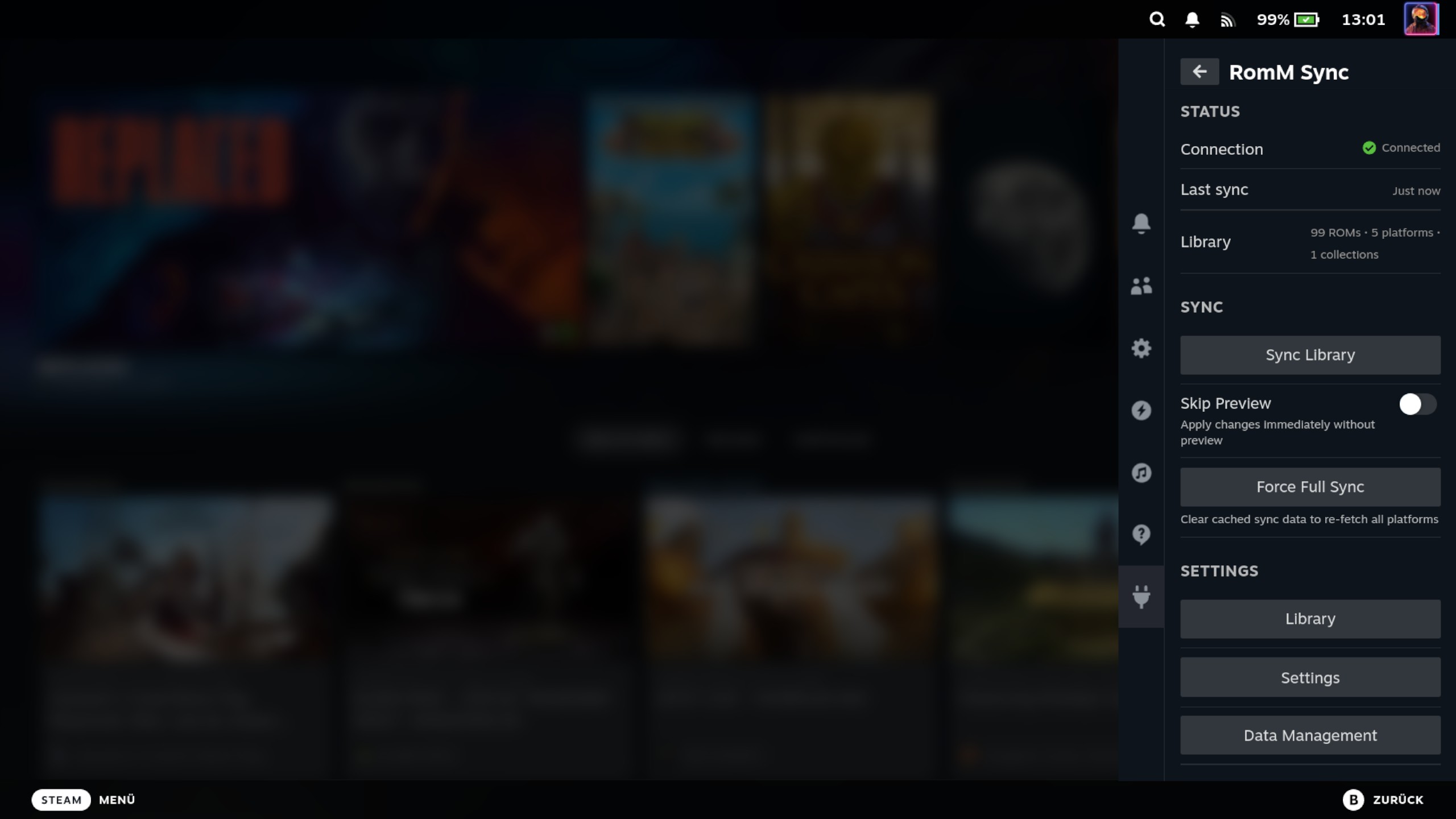
This screenshot predates the current layout: syncing now has a page of its own, reached from the panel's Sync menu entry, and the buttons above sit on that page rather than on the panel's first screen.
You can tap Cancel Sync to stop mid-sync — from either page. Games already added will remain. A cancelled sync never removes any Steam collections — stale-collection cleanup only runs after a sync finishes in full, so cancelling can never wipe the collections for platforms the run did not reach. If the cancel request itself does not get through, the run is still going, so the panel keeps showing its progress with Cancel Sync ready to try again rather than offering to start a second run on top of the first.
Time estimate and progress
Before you start, the Sync page's change table shows what the run will add, update, or remove, and below it one line with the run's coverage and estimated time (for example "Syncing 3 platforms · 2 collections · estimated duration 3 min"). The sync only touches the games that are actually new or changed — games that are already correct in your library are skipped entirely, not re-processed — so a re-sync of a mostly-settled library is quick, and the estimate reflects only that changed work. If you sync without previewing first, the estimate appears once the run starts as an Estimated time line, shown as "up to X min".
Cover changes count too: if you replaced a game's cover on the server but nothing else changed, the page reads "No shortcut changes — N cover updates" in place of the table and still offers Apply Sync — applying refreshes those tiles without touching the shortcuts. Only when there is truly nothing to do does it read "Everything is up to date."
A preview stays good for 30 minutes, and it belongs to the plugin rather than to the page you are looking at: you can leave for the settings or a submenu, come back, and the same preview is still there with Apply Sync ready. That holds while it is still being worked out, too — leave while the plugin is comparing your library and come back, and you get the progress for the comparison that is still running, then its table the moment it finishes, whether you were watching or not. The Sync page says how long it has left — "expires in 26 min" beside the heading, counting down. If you leave it past the half hour it says "expired"; the change table stays readable, Apply Sync greys out, and Refresh is what moves you on. Nothing you were shown is discarded behind your back. Once it has expired the main page's Changes ready row disappears, and Refresh works out a fresh preview in place of the old one.
That starting estimate is skip-aware: when the run is planned, the plugin already knows which platforms haven't changed since their last sync and expects to skip them wholesale, so they don't inflate the number — an incremental re-sync of an unchanged library reads seconds, not the minutes a full first import would take. The prediction is only an estimate (the actual skip is decided per platform, and per collection, as the run reaches it), so a wrong guess can make the readout run long or short for a moment, but it never changes what the sync actually does. Collections are skipped the same way a platform is: if a collection's membership hasn't changed and none of its games did either, the plugin skips it without re-listing its contents — so a large, collection-heavy library re-syncs quickly.
The estimate also knows the difference between adding a game and updating one. Creating a shortcut is roughly three times the work of refreshing one that already exists, and it also has to pull down a cover; updating an existing shortcut does neither. So a re-sync over games your library already has is estimated at the cheaper update rate rather than as though it were building your library from scratch — including a Force Full Sync, which re-applies every game your platforms already hold but adds none, so its platforms are estimated at that cheaper rate too. One exception remains: after a Force Full Sync, your collections are estimated at the dearer "adding" rate for that run. The plugin only knows which games are in a collection from the record it keeps when that collection last finished syncing, and Force Full Sync deliberately wipes those records — so for that one run it can't tell that your collections' games are already in Steam. The run itself is unaffected, and the estimate only ever reads too long, never too short. Cover updates are counted on their own, so a run that only refreshes cover art is estimated from how many covers changed instead of falling back to a fixed number.
Once the sync has been creating shortcuts for a few seconds, that "up to" ceiling is replaced by a live countdown — "2 min left" — measured from the actual speed on your device and updated as the run proceeds. The countdown waits until it has genuinely measured the apply speed before it appears: at the very start of a run the plugin takes a one-off look at the shortcuts already in Steam, which can take ten seconds or so on a large library, and readings taken across that pause would make the first countdown read several times too long. Both the countdown and the progress counter show net progress: they count the games this run actually needs to add or update (say "100/801"), not every game in your library. It holds steady across the short pauses where the sync fetches the next platform's game list, rather than jumping around. The main progress bar apportions its width the same way — a platform expected to skip takes no space, and a huge platform fills the bar in proportion to its real work instead of an equal slice per platform. The one exception is a run that opens with platforms that have nothing to add: those still refresh cover art, so they would leave the bar sitting at empty for as long as they work. Each of them therefore claims an ordinary equal slice, and the platforms that do have games to add fill the rest of the bar between them.
A few things worth knowing for a large library:
- The progress bar advances through each phase. For a large platform the sync first pulls the game list from your server page by page, then downloads cover art, then starts creating shortcuts; the line names what it is doing (e.g. "Fetching Game Boy Advance (page 12/62)" then "Preparing covers for Game Boy Advance"), and the bar now edges forward through the fetch and cover phases as well — not only while shortcuts are being created. A platform whose cost is mostly its cover pull no longer shows a bar that sits frozen until the very end, and the bar never jumps backwards as the phases hand over. When a platform's games are already up to date and only their cover art changed on the server, the line counts those cover updates as they apply — "Game Boy: covers 37/140" — instead of resting at a bare "0/0".
- Cover art fills in as the run goes. Covers appear on your library tiles progressively while the sync creates shortcuts, not only at the very end, so you can watch the library fill in. A few tiles may stay gray until the first time you open that game's page (or the next time Steam restarts) — that is expected and does not mean the cover is missing.
- Progress is saved as it goes — roughly every 200 games. If Steam crashes or you cancel partway through, the games already created are kept, and the next sync picks up where it left off instead of starting over.
- Cancelling keeps finished games. Everything added before you cancel stays in your library; cancelling never removes finished games (and never removes Steam collections).
- Sleep is safe; keep it powered. If the Deck sleeps mid-sync the run pauses and resumes on wake — it does not stall or lose progress. For a large first sync, plug it in so the battery lasts the whole run.
- A very large sync may pause itself to protect Steam. Steam holds every shortcut it creates in memory for the rest
of the session, and that memory only frees on a Steam restart. A very large first import can approach that limit, so
the plugin watches Steam's memory and, when it gets close, pauses cleanly at a safe point rather than risking a Steam
crash. If the preview expects this, it shows a blue note up front ("will likely pause partway to protect Steam's
memory — normal for large syncs"). When a pause happens, the main page shows a short "Sync paused" notice with an
Open Sync button, and the Sync page shows the full blue card — "Steam memory is full (2.3 GB). 1200 of
2001 games done. Restart Steam, then Check for changes." — that stays until you resume, and a toast carries the same
guidance when the pause happens. The card reports how far the run got, so you can see how much is left before you
resume. Restarting Steam frees the memory and the resume finishes the job. Once you've restarted, the card notices on
its own — it changes to "Steam memory is free again (0.4 GB). 1200 of 2001 games done. Press Check for changes to
continue." and drops the restart button, so you know a resume will actually work now rather than pausing again.
Nothing is lost, and you are never forced out of what you were doing. After a big run finishes with memory still high,
a yellow card on the Sync page recommends a Steam restart before your next large sync; it clears itself once you
restart.
- The card names whichever button is actually there. That is why the quotes above say "Check for changes": it is what the button reads with Skip preview off, which is the default. Switch Skip preview on and the same card reads "Restart Steam, then Resume Sync." — it always names the button standing under it. If you press Force Full Sync while a paused run is showing, there is no longer anything to resume, so with Skip preview on the card drops back to Sync Library ("Restart Steam, then Sync Library.", or "Press Sync Library to start over." once memory is free). It also drops the "1200 of 2001 games done" sentence there, because that head start is exactly what the force-clear discarded: the next run does all of it again. When a change table is already up, the button it names is Apply Sync, because that is the one on the page.
- Tap "Restart Steam now" to free the memory. Both cards include a Restart Steam now button, on the Sync page. It restarts the Steam client (Steam closes and reopens) — the reliable way to reset its memory — and you can Resume Sync once it comes back. The button is disabled while a game is running (a restart would close your game), so close your game first; it is also unavailable while a sync is actively running.
- The Sync page shows Steam's current memory. A Steam memory reading sits under Options beside the last run's growth, so you can see how close Steam is to its limit at a glance (it's hidden only if the reading can't be taken); while a sync is running it refreshes every few seconds so you can watch the number climb. The number is colour-coded — green when there's plenty of headroom, yellow as it gets high, red once it's near the limit where syncs pause. It is on the Sync page and nowhere else, next to the buttons it is about; what the main page carries is the "Sync paused" notice that points you here.
Resuming an interrupted sync
Because progress is saved as the sync goes, a run that does not finish is never wasted — you just run sync again to complete the job.
- The main page tells you when the last run didn't finish. The Last sync line normally shows when the last full sync completed. If your most recent run ended early, a second line reports how it ended and when — "interrupted 3h ago" if a crash or a Steam reload stopped it, "paused 10m ago" if the memory guard paused it, or "cancelled 10m ago" if you tapped Cancel Sync — so a partial run that still added hundreds of games never reads a misleading "Never". The line states what happened and does nothing; Sync in the menu is the way to the page where your last ten runs are listed and where a resume is offered. The end-of-run toast and the sync status line make the same distinction: a run stopped by a crash or Steam reload reads "Sync interrupted — … so far." rather than blaming a Cancel you never pressed, and the status line compares progress against the run's planned total (e.g. "3 of 10 games processed").
- The next sync continues where the last one stopped. When a run was cancelled, interrupted, or paused and left work
the next run can skip, syncing again completes the library: the platforms that already synced in full are skipped, and
even in the platform that stopped, only the games it hadn't finished are processed — the ones already correct are
skipped, so a resume finishes quickly and the counter shows just the remaining work. This is true whether or not you
restart Steam in between.
- The line under the Sync page's button is what tells you a resume is waiting — for example "1200 games already synced — a resume continues from there." It counts what is already done, not what is left: the plugin can only know the finished side without asking your server, so no total is shown. It is left out in the one case where the plugin knows a resume is possible but cannot put a number on it — a library synced before the plugin started recording per-game progress, where whole platforms are skipped but no individual game is counted.
- The button says what the press does, not what the library needs. With Skip preview off it reads Check for changes whether or not a resume is waiting, because that press works out a preview and adds nothing to Steam either way — the line under it is where the resume shows. With Skip preview on the press starts the run, so the button names it: Resume Sync while there is work to continue, Sync Library once a run has finished in full.
- A run that stopped early still counts. Even a run cancelled inside its very first platform had already added games and would skip them next time, so that is a resume too. There is nothing to continue — no line, and no Resume Sync — whenever there is nothing for the next run to skip: a first run stopped before a single game was added, a Force Full Sync since (see below), or removing your shortcuts in the meantime. A run that ended in an error offers no resume either: those usually fail before adding anything, so "resume" would be the wrong word for it.
- Force Full Sync starts over from scratch. On the Sync page, under Options and behind a confirmation, Force
Full Sync clears the plugin's record of what it has already synced and re-fetches every platform and collection from
RomM on the next run — and that run also rewrites every shortcut instead of skipping the ones that look correct, so it
repairs anything that drifted on the Steam side (a manually edited or broken shortcut). Reach for it if you suspect a
platform is out of sync or want a clean rebuild; a normal sync — or a resume — is enough for everyday updates. It is
greyed out until you have run at least one sync, and while a sync is running.
- Your "Last sync" line is left alone. Force Full Sync only re-arms the next run — it does not wipe your sync history, so the Last sync line keeps showing when your library last synced (or the last attempt) instead of dropping back to "Never". The next preview names the full re-sync explicitly: above the change line it reads "Full re-sync — all platforms re-fetched.", so a big "Games: … updated" count reads as the intended rebuild rather than a surprise. The button stays put after you press it — pressing it again simply re-arms the same fresh start.
- Nothing is left to resume afterwards. Force Full Sync discards exactly the records a resume would continue from — both what it knows about finished platforms and what it knows about each already-correct game — so the line naming what would be skipped goes, and with Skip preview on the button reads Sync Library again even when your last run was cancelled or interrupted. Your games stay in Steam; it is only the plugin's record of what is already correct that goes, which is what makes the next run redo all of it. Whichever button you press next, the run is a full one — nothing on the page promises otherwise.
Multiple versions of a game
When your RomM library holds several dumps of the same game — region variants like (USA) / (Europe) / (Japan),
multi-language dumps, or revisions — the plugin treats them as one game and creates one Steam shortcut for it,
not one per dump. RomM already groups these versions together; the plugin mirrors that grouping. Because of this, the
sync counts (in the preview and the completion toast) count games, not individual files: a five-region game is one
"added", not five.
The version the shortcut points at (the active version) is chosen automatically: a version you have already installed wins, otherwise the shortcut follows the "SET DEFAULT" version you picked in RomM, otherwise the plugin picks the best dump for you (see below). Switching versions from inside the plugin is a later feature; for now the active version follows what is installed and RomM's default.
How the plugin picks the best dump, and how the shortcut is named. When nothing is installed and you haven't set a
default in RomM, the plugin ranks the dumps like a 1G1R (one-game-one-ROM) tool. A finished release always beats a
prerelease — a beta, prototype, alpha, sample or demo dump loses even to a finished release from a less-preferred
region (so a finished Japanese dump wins over a US beta). Among finished dumps, it prefers a region in the fixed order
World → USA → Europe → Japan, then any other region alphabetically, and a dump with no region last. (This is a fixed
order, not language or system detection.) Within one region it then prefers the newest revision (a (Rev 1) dump
over the plain release, a (Rev 3) over a (Rev 1)), and finally prefers the plain base game over a filename-only
re-dump like (Virtual Console) or (Extended Edition). You can change the preferred region — see
Preferred region in Configuration. The name of the Steam shortcut follows the
same ranking (ignoring what's installed or set as default), so a multi-region game gets a readable name rather than
whichever dump happens to sort first: a game with two Japanese dumps and one US dump is named after the US dump, while a
game that only exists as a Japanese dump honestly gets its Japanese name. The name is chosen once, when the shortcut
is created, and never changes automatically afterwards — even if you later switch to a different version, change the
RomM default, or change the preferred region. This keeps the shortcut's artwork, collections and playtime intact. It
does mean the shortcut's name can differ from the version it currently launches, and that changing the preferred region
only affects games synced after the change.
If you synced before this update and already have several Steam shortcuts for one game, those existing shortcuts are kept — the plugin never deletes a shortcut you can see. They converge to a single entry naturally as you uninstall the extra versions.
Per-Platform Toggles
Not every platform in your RomM library needs to be synced to Steam. The Platforms tab of the Library page is where you enable or disable them.
- From the main page, tap Library; the Platforms tab opens first (L1/R1 switch tabs)
- The list holds every platform your server reports with at least one ROM, in two groups: Synced above Available
- Each row carries a coloured dot, the platform's name and its sync toggle. The dot is the platform's BIOS state at a glance; the BIOS files section of the pane on the right says it in words for the row you are on, and Library › Platforms explains the colours. Press A on the row to toggle it
- Enable all / Disable all sit above the groups
- Only enabled platforms are included in the next sync
The groups are worked out when you open the page and stay put while it is open, so a platform you switch off does not jump out from under you mid-list. The next time you open the page it will be in its new group.
Picking a platform shows everything else about it on the right: how many of its ROMs are on RomM and how many are in Steam, the emulator core it launches with, its BIOS files, and the two ways to take it back out of Steam. See BIOS and Emulator Core Management.
All platforms are enabled by default until you change a toggle. Turning one platform off affects only that platform — every other platform stays enabled and keeps syncing.
Collections
The plugin automatically creates Steam collections for each synced platform. Collection names include your machine's hostname to avoid conflicts if you run the plugin on multiple devices:
RomM: Nintendo 64 (steamdeck)RomM: Game Boy Advance (steamdeck)RomM: PlayStation (htpc)
Collections appear in Steam's library sidebar and can be used to browse games by platform.
Syncing RomM collections
The Collections tab of the Library page lists the kinds of collection on the left, and the selected kind's collections as a table on the right. From the top, the list holds:
- Collections — the collections you (or, on a shared server, other users) picked by hand in RomM.
- Smart collections — saved searches, whose games are whatever the search matches when the sync runs.
- Under Autogenerated: Franchises and IGDB collections — groupings RomM builds from IGDB metadata. They have no owner.
- Under a thin line, Favorites — your own RomM favorites collection. Its row carries its sync switch and the number of games in it.
- Last, Other users' collections — a row with its switch in it, saying how many of the listed collections are other
users' (for example
3); its pane says whether they are shown. Selecting it shows what the switch does (see below).
Each kind row other than Favorites says how many of its collections are on, for example 4 of 12. The page opens on
Collections.
Turning a collection on adds all of its games to Steam at the next sync — including games on platforms you have not
synced. A collection is not limited to the platforms you switched on under Platforms: every game in it is added, and
the games are grouped in a Steam collection named after it, RomM: [<name>] (<device>). Each kind's pane says this in
its first sentence. What Distinguish collection types in Steam names adds to the name is under
Collections that share a name.
The table has these columns:
- Collection — the collection's name.
- Owner — you, or the RomM user name of the user it belongs to (Collections and Smart collections only). Until the plugin knows your RomM account it cannot tell which are yours, so it shows each collection's owner name instead.
- ROMs — how many games RomM lists in it.
- In Steam — how many of those games are already in Steam. The difference to ROMs is roughly what turning the collection on adds (roughly, because several versions of one game share one shortcut). A dash means the plugin could not tell, not that there are none.
- Sync — the switch.
Collections that are on are listed first. The order stays put while the page is open, so switching one does not move it out from under you.
A Search box beside the buttons narrows the table with a fuzzy name match, so a loose or partial query still finds a name. The table shows at most 50 rows; when more match, a line under the table says how many more there are — type in the search to bring them into view. If a kind lists nothing with the search empty, and Other users' collections is off and hiding some of it, a line says how many of other users' collections it is hiding.
Enable all and Disable all switch every collection the table lists — with a search typed, exactly the collections the search leaves — including any past the first 50. When the table lists more than 20 — with a search, when the search leaves more than 20 — they ask for confirmation first; 20 or fewer are switched straight away. After the confirmation closes, whichever way you answered, you are back on the button you pressed. On Franchises or IGDB collections they only ever switch that one type. While Other users' collections is off they never switch someone else's. The collection the Favorites row switches is not in the Collections table, so they leave it alone — but when that row is greyed because more than one favorites collection counts as yours, those are ordinary rows of the Collections table and they switch them too.
If a collection's switch does not take — for example while a RetroDECK path migration is pending — it flips back and a line says why: in the pane for a table switch or Enable all / Disable all, and under Other users' collections for the Favorites switch. Other users' collections itself reports a failure to save in the same place. The line goes away with the next change that works there.
If the collection list cannot be read, the pane shows what went wrong. Leave the tab and come back to try again.
The Show collection games in platform groups setting — whether games pulled in via a collection also get added to their platform's Steam group — lives on the Settings page under Steam Library, alongside the preferred-region preference. It applies to every sync, so it sits with the other set-and-forget preferences rather than on this tab.
Other users' collections
On a shared RomM server the collection list includes every other user's public collections alongside your own. The Other users' collections row at the foot of the list carries a switch that decides whether they count:
- On (default) — every collection the server lists, including other users' public ones. Their Owner column shows their user name.
- Off — only the collections you own. Other users' collections are hidden from the tables and left out of the sync,
even one you switched on earlier — turning the switch back on brings your earlier choices back, since it does not
change which collections are switched on. The
N of Mcounts follow it too.
Franchises and IGDB collections always appear either way: they are auto-generated groupings that have no owner. The switch only takes effect once the plugin knows your account, which it learns the first time you sign in (existing sign-ins pick it up on the next connection check). Until then turning it off hides nothing.
Another user's public favorites collection is listed under Collections like any other of theirs, with their name as its owner. If more than one favorites collection counts as yours — which can happen before the plugin knows your account — the Favorites row is greyed out with "more than one, listed under Collections", and each of them has its own switch under Collections. If your account has no favorites collection, the row is greyed out with a dash.
Collections that share a name
If two enabled collections share the same name — for example a hand-picked collection and a smart or virtual collection called the same thing, or (on a shared server) another account's public collection — what happens depends on the Distinguish collection types in Steam names setting on the Settings page under Steam Library:
- Off (default) — the same-named collections merge into a single Steam collection carrying the combined set of games. RomM allows collections to share a name, but Steam identifies a collection by its name, so the plugin unions their members rather than dropping one. Names that differ only in capitalisation ("7 up" vs "7 Up") count as the same name and merge too — Steam itself treats collection names case-insensitively.
- On — hand-picked collections (Collections and Favorites) keep their plain name, and every other kind gets
its type added to the Steam name:
(Smart),(Franchise)or(IGDB Collection). A hand-picked collection, a franchise and an IGDB collection all called "Mario" becomeRomM: [Mario] (<device>),RomM: [Mario (Franchise)] (<device>)andRomM: [Mario (IGDB Collection)] (<device>)— three Steam collections. Collections that end up with the same Steam name still merge: two of the same name and type, and also a hand-picked collection named, say, "Mario (Smart)" with a smart collection called "Mario".
The setting applies on the next normal sync — no Force Full Sync is needed. After flipping it, run a sync: the plugin creates the Steam collections under their new names and, at the end of a sync that finishes in full, removes the old-named ones.
If you had the setting on with an earlier version, your hand-picked collections were named with (Standard) in Steam,
such as RomM: [Kids (Standard)] (<device>). They are now named without it, as RomM: [Kids] (<device>): the first
sync that finishes in full creates the new ones and removes the (Standard) ones. A sync that stops early (cancelled,
paused or interrupted) can create new ones without removing the old ones, so you may see both for a while. They are new
Steam collections, holding the games the sync puts in them.
Artwork
Each synced game gets up to five types of artwork:
| Type | Source | Where It Appears |
|---|---|---|
| Portrait Grid (cover) | RomM | Library grid tiles, collections |
| Hero Banner | SteamGridDB | Game detail page background |
| Logo | SteamGridDB | Title overlay on hero banner |
| Wide Grid | SteamGridDB | Recent games shelf, list view |
| Icon | SteamGridDB | Taskbar, small UI elements |
Cover art is always applied from RomM. The other four types require a SteamGridDB API key. Games without a SteamGridDB match will show Steam's default placeholders for those slots.
You can refresh artwork for any individual game from its game detail page.
Re-Syncing
Running sync again updates your library with any changes from RomM (new ROMs, removed platforms, etc.). Existing shortcuts are updated rather than duplicated. If the specific version a shortcut pointed at is removed from RomM but the game still has other versions on the server, the shortcut is kept and quietly re-pointed at a surviving version — it is not torn down and re-created, so its artwork, collections, and playtime are preserved.
Sync itself never purges a retained local ROM row, installed content, saves, or playtime solely because RomM stopped returning that id. Removing that state requires the separate confirmed Clean Up Removed RomM Games workflow.
Removing Shortcuts
To remove one platform's games, use that platform's pane in Library › Platforms — see Removing a platform from Steam. For the library-wide removals, use the Data Management page; see Troubleshooting — Data Management for the populations it lists and what each one offers.
If you delete a synced game directly from Steam's own library, the next sync brings it back. The plugin notices the shortcut is gone at sync start and re-creates it, so deleting through Steam is not a permanent way to remove a RomM game — use one of those two places for that.
Previous: Configuration | Next: Managing Games