Managing Games
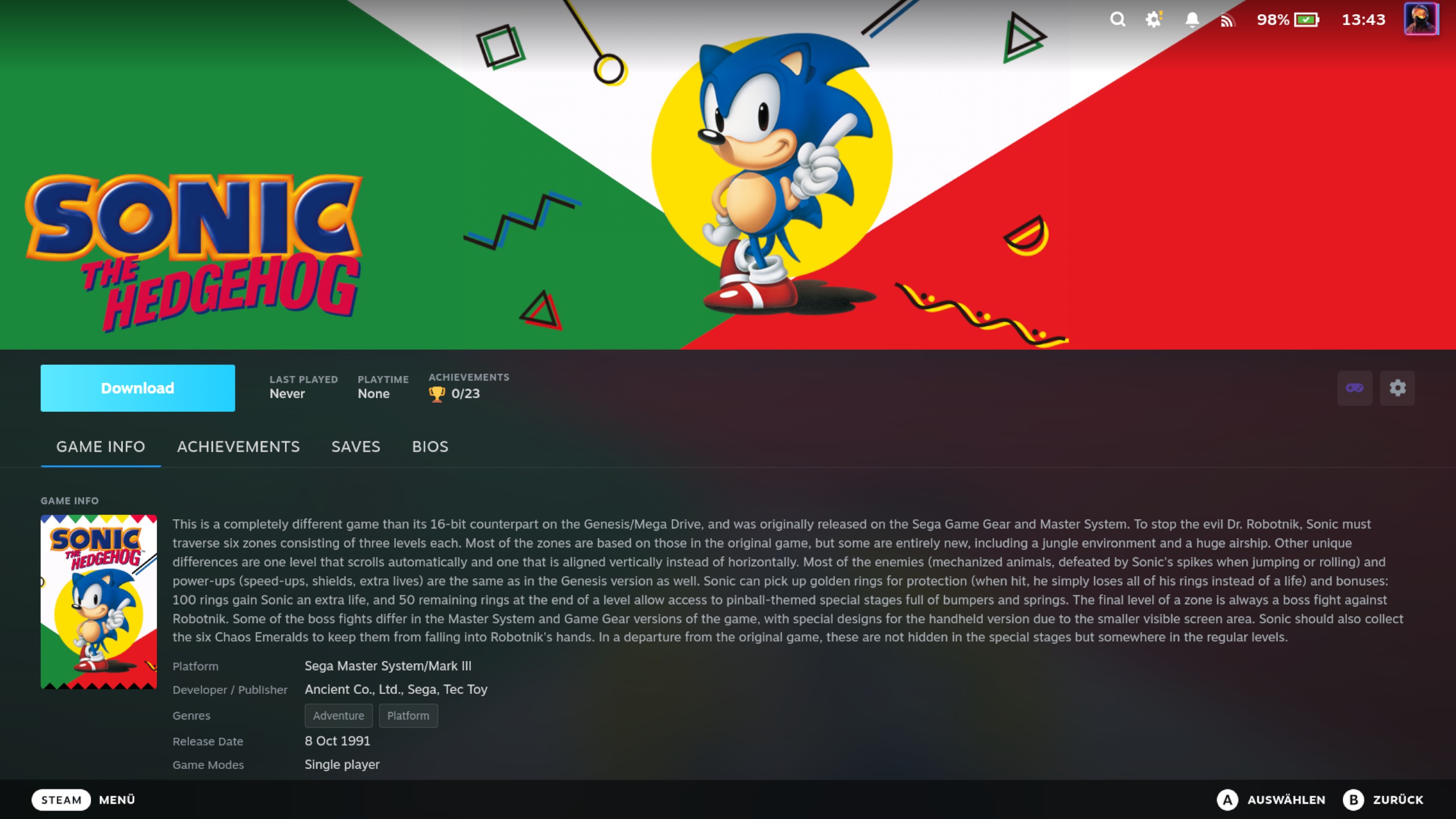
After syncing, each game in your Steam Library that came from RomM has an injected Tender panel on its detail page. This panel handles downloads, artwork, BIOS status, save sync, and more.
The Game Detail Panel
When you open a RomM game in the Steam Library, you'll see the Tender panel below the standard Steam content. It shows:
- Status badge — "Installed", "Downloading", or "Not Installed"
- Platform name — which system the game belongs to (e.g. "Game Boy Advance")
- Version switcher — a compact control next to the Play button (beside the disc picker) to pick which version of the game is active, when RomM has more than one (see below)
- Region / Languages — attributes of the active version, shown in the Game Info tab when RomM has them (see below)
- BIOS status — whether required BIOS files are present (see BIOS Management)
- Save sync status — last sync time, conflict count, and playtime (see Save Sync)
- Space required — for a game that isn't downloaded yet, a "Space Required" cell next to the Play button shows how much disk space the download needs. It disappears once the game is installed (mirroring how Steam hides it for installed games); it's also omitted when RomM doesn't report the size.
- Action buttons — Download, Pause/Resume, Uninstall, Cancel, or Refresh Metadata depending on state
Versions
Many games exist in a RomM library as several versions — different dumps of the same title: a (USA) release and a
(Europe) one, a multi-language (En,Fr,De) dump, a (Rev 1) revision, a (Demo). RomM groups these as a sibling
group (one game, many versions), and the plugin represents the whole group with a single Steam shortcut. The
version currently bound to that shortcut is the active version — the one the Download button fetches, and the one
that launches and syncs saves.
The Switch-version control
When a game has more than one version, a compact version control appears next to the Play button — right beside the disc picker, and only for a multi-version game. Open it to see every version in the group, each showing its own cover art (so two regions of the same game are told apart at a glance; a version whose cover can't be fetched shows a disc icon), with markers for:
- ✓ (active) — the version currently bound to the shortcut. This is exactly what the Download button will fetch.
- Default — the version the plugin would pick on its own, following RomM's "SET DEFAULT" choice (
is_main_sibling) and, failing that, your Preferred region setting. It's a suggestion, not a lock. - Downloaded — a version you already have on disk.
- not synced — a version RomM has that isn't in your local library yet. Selecting it records it on the spot — unless it's dimmed as a conflicting metadata match (see below).
Some rows are dimmed and can't be selected, labelled "conflicting metadata match in RomM". Versions of one game are grouped by the metadata match they agree on — even when their coverage is uneven. A US and a EU dump that scrapers matched differently (say one carries an IGDB id, the other only a ScreenScraper id) still group together and switch freely, as long as the highest-priority match they share agrees. A row is dimmed only when its match genuinely conflicts — it carries a different id at that shared match, so RomM really treats it as a different game. This holds whether or not the version is already in your library: a dump you've already synced under a conflicting match, and a not-yet-synced version whose match conflicts, are both shown (so you know they exist) but can't be switched to — either would move the shortcut onto a different game. To make one selectable, fix its metadata match in RomM so it agrees with this game's, then re-sync.
A retained local version that RomM has positively confirmed it no longer has is also shown dimmed, with the separate label "No longer available on RomM", and it cannot be switched to: selecting it instead opens the cleanup confirmation described under Cleaning up versions removed from RomM. Its active and Downloaded markers remain visible so it is clear what the shortcut and local files still refer to, but it never receives the Default badge. If the shortcut is still active on that unavailable id, choose any live alternative in the same list to recover the game.
When the version the shortcut is bound to is the one confirmed gone, the Download button is greyed out as well — it stays visible, like the version row, but downloading it could only ever fail. Pick a live version in the version list, or remove the local data, to get the button back.
This availability check is fresh each time the version list loads and is not saved in the plugin database. Only a 404 for that exact ROM id establishes that it is gone. Timeouts, sign-in/permission errors, server errors, and malformed responses fail open: the plugin does not disable a version merely because it could not get a trustworthy answer. A ROM-specific 404 also does not make the rest of the plugin report that RomM is offline.
Selecting a different version rebinds the game to it: the Download button now fetches that version, the panel's title and Region/Languages rows update to reflect it, and its cover refreshes to the new version. The Steam shortcut keeps its name, its place in your collections, and its playtime — all tied to the shortcut, which never changes. A single-version game shows no Version control.
The plugin checks the selected version again immediately before moving the shortcut. If RomM now answers that the exact version no longer exists, the switch is refused with Could not switch version, nothing about the shortcut changes, and the picker refreshes directly so the row becomes unavailable without starting a library sync. This protection also applies after Sync now & switch and Switch anyway; the latter bypasses only the unsynced-save warning. If RomM cannot provide a definitive answer because of a timeout, connection/sign-in/server error, or malformed response, the local switch is allowed to continue. In particular, the offline Switch anyway path does not wait through the normal retry sequence. A target-specific refusal does not by itself change the plugin's global online/offline status. When the refusal follows a Sync now & switch whose upload already succeeded, the Saves tab is refreshed as well, so it shows the saves that were just uploaded rather than the state from before the sync.
Switching never deletes anything. ROM files already on disk stay put, and save files are never moved or deleted by a switch. What happens depends on whether the version you're leaving is downloaded and whether its saves are synced:
- Not downloaded, or downloaded with all saves already synced — the switch is instant. If the version you switch to is on disk it's playable right away (Play stays Play); if it isn't, the button becomes Download.
- Switching back to a version still on disk — instant and playable immediately, with no re-download.
- Leaving a downloaded version whose saves were never uploaded — a dialog warns you first. It offers Sync now & switch (uploads the saves, then switches), Switch anyway (the saves stay on disk but stop syncing until you switch back to that version), and Cancel. When RomM is unreachable the saves can't be uploaded, so the dialog drops the sync option and offers only Switch anyway and Cancel, explaining why.
When you leave a downloaded version with unsynced saves behind, the Saves tab shows a reminder banner ("switch back to sync them") so those saves aren't forgotten. It does not recommend switching back to a version positively confirmed as no longer available on RomM; it skips that retained row and continues checking any later live versions.
While a download of the game is running, switching is blocked with a short message — cancel the running download first.
While a switch is being applied, the version control briefly shows a spinner and can't be reopened until the switch settles and its version list refreshes — so a fast second tap can't act against the not-yet-updated list (for example, switching straight back before the list has caught up).
Cleaning up versions removed from RomM
Normal library sync never deletes retained local rows, installed files, saves, or playtime just because a game disappears from RomM. To remove that state explicitly, open Data Management → Gone from RomM. The first scan is local and finds groups containing rows absent from a completed platform fetch.
The dialog opens on the count that matters — how many locally kept versions are no longer on your RomM server. Under that come the options in two columns, then the controls for the run, and last the versions themselves as a table: the game, its platform, a short verdict, how much is installed, and Keep a copy. Under each row a line names the version — its ROM id, and its file name where that differs from the game's name — so two versions of one game can be told apart. The versions that are gone come first, each marked Gone from RomM. Other versions of the same games follow under Other versions of these games — still on RomM, each marked Still on RomM: they were still on RomM at your last sync, and they go only if the run's fresh check finds every version of that game gone, in which case the whole game is removed with its Steam shortcut. Where a game has more than one version, the verdict says so — for example Still on RomM · one of 4. They are listed so nothing can be removed without having been shown, and they appear only while Remove fully vanished games is on — with that option off they cannot be removed at all, so the list drops them. A warning about a version — including that its downloaded ROM file will be deleted without a backup if that version is removed — is a line under its row. The headline count always counts the versions that are gone, never these. The modal loads the list a page at a time, each kept small; load every page before confirmation. The confirmation run checks every exact RomM id again. Only a confirmed 404 can be removed. Offline, timeout, authentication, server, malformed-response, active-download, and ambiguous multi-shortcut cases are skipped and reported without deleting data.
The confirmation options apply to this run only:
- Repoint vanished shortcuts is on. It preserves the Steam shortcut and its appId, collections, artwork, and playtime while switching to the group's natural live Default. This option works independently of row removal.
- Remove gone versions is on. It removes the confirmed rows and their installed content in games that still have a live version.
- Remove fully vanished games is on. It applies only to games where the server confirms every single version is gone; those are removed whole, with any Steam shortcut they have. It ships on because removing a game RomM no longer has is what this dialog is for, and because the default-on recovery bundle keeps the shortcut's Steam details so it can be rebuilt by hand. Switch it off to limit the run to individual versions of games that still exist — the list then hides the retained siblings, since nothing else can reach them.
- Create recovery bundle is on. Bundles are sealed under
~/romm-tender-recovery/bundles/before mutation. Leaving it on is what makes whole-game removal reversible by hand; turning it off asks you to confirm separately, with I understand there is no recovery bundle under it. - Keep a copy — the toggle in each installed row — is off for every disclosed installed row. It puts that version's installed ROM content in the recovery bundle. Its exact recursive size is in the Installed column; selecting more than the currently free recovery space blocks confirmation. Turning recovery off clears and disables these selections, and so does switching off whole-game removal for a row that is only listed because of it. Large selections are staged in bounded pages before the run without a total selection cap. Unselected installed content is still deleted if the row is removed. When no listed version has ROM files on this device the option has nothing to attach to, so the list says so instead of leaving the option apparently missing.
The recovery estimate, Refresh free space, Load more (while part of the list is not loaded yet), Cancel and Confirm Cleanup sit directly under the options, above the table, so they are a few presses away however long the list is; a running cleanup's progress, its Stop Cleanup button and its result appear there too. The displayed selected-content total is a lower-bound preflight, not the complete bundle size. Use Refresh free space after freeing disk space. The backend remeasures selected ROMs plus mandatory saves, backup history, caches, and Steam files before mutation and safely fails the group if the complete bundle does not fit.
Recovery always records the affected database state, local playtime and pending sessions, exact attributable current
saves (including path-safe filenames retained in prior save-sync state) and backup history, and relevant plugin caches.
Fully vanished shortcut recovery also records bounded Steam details, collections/playtime fields, grid art, Steam Input
files, and the controller setting. It contains no settings, credentials, tokens, whole database, BIOS, or save states.
Recovery is manual only: there is no restore UI, and a new Steam shortcut cannot inherit the recorded Steam-assigned
appId or playtime. Because the folder is the recovery interface, it is written to be read months later. Each bundle is
named <game>_<date>_<id>, and its README.txt lists every game the bundle covers and what the run did to it, every
copied file with the exact path to put it back, the playtime in hours and minutes, and the steps to restore by hand
starting with sha256sum -c checksums.sha256. The recovery folder itself carries a README.txt explaining what it is.
A vanished row carries a red trash icon at its right edge in the version picker, and activating that row opens the same confirmation scoped to that one version. A singleton vanished binding shows the same trash action as a single button, without opening an otherwise empty picker. The vanished version itself remains non-switchable either way — selecting it can only ever start the cleanup, never rebind the shortcut to it.
While a cleanup runs, the Gone from RomM pane shows a progress bar under the entry point — the game being worked on, the phase in words (checking with RomM, backing up, backup complete, updating or removing the Steam shortcut, removing local data, done) and which game of how many it is on — and the scan button stays unavailable, so you can close the dialog and still see what is happening. The bar itself fills with the games already finished, not the one in progress, so it reaches the end only when the run does: backing up a large game takes a while and reports nothing while it copies, and a full bar sitting over it would say the run was done when it was not. Both the dialog and that pane offer Stop Cleanup. It stops at the next safe moment: a backup still being written is abandoned and that game is left completely untouched, while a game whose removal has already begun finishes and reports what it changed. Backing up a large game can take minutes, so being able to walk away from one is the difference between stopping now and waiting it out. While the run winds down the button says Stopping so a second press is never needed. Nothing already done is undone — stopping is not an undo, and the report afterwards lists exactly what was committed. If a game's backup finished before the run stopped, the report says so and names the folder, so a recovery bundle that removed nothing is never a mystery.
If Steam changes before local cleanup can finish, the report can show a partial group with the concrete committed action and failure message. A confirmed shortcut removal is reconciled to an unbound retained row; a committed repoint remains bound to the new Default. If Steam removal succeeded but every completion report was lost, the result is marked ambiguous and source data stays retained; the same applies when Steam removal was attempted but its absence could not be confirmed. Retrying confirms an already-absent shortcut instead of removing it twice. Save ownership warnings are shown in a focusable terminal-detail region even when the group was removed successfully, and a run-level cancellation or failure message remains visible after earlier groups committed. If bounded warning or message text was omitted or shortened, the detail distinguishes omitted warnings from shortened displayed text and never reports zero additional warnings. Progress is tied to the preview that you confirmed, so a matching run is still shown if only the successful start response is delayed or lost; a matching terminal event makes the modal closable immediately. Once that terminal result is assembled, delayed frames for the same run cannot replace it. Frames from an older preview are ignored. These outcomes are intentional and retryable rather than being reported as unchanged.
Region and Languages
In the panel's Game Info tab, the plugin shows the Region (e.g. USA/Europe) and Languages (e.g. En, Fr)
of the active version, when RomM has them. These are attributes of that one version — they change when you switch
versions, and a version with no region/language detail simply omits the rows. The values refresh on every sync.
Downloading ROMs
Games appear as shortcuts in your library even before the ROM file is downloaded. Before downloading, the panel shows a Space Required cell next to the Play button so you know how much disk space the ROM needs. To download:
- Open the game's detail page in the Steam Library
- In the Tender panel, tap Download
- A progress bar shows download status with bytes transferred
- When complete, the status changes to "Installed" and the game is ready to play
You can also abort a download in progress — tap the X that appears on the right of the download button on the game's detail page, or use Cancel in the QAM download queue. Only the partial transfer files are cleaned up — an already-installed copy of the game is never removed, so cancelling a re-download (or a download that fails partway) leaves your existing install intact. If the cancel happens to land just as the download finishes, the game is kept as Installed rather than torn down.
Downloaded ROMs are stored in your RetroDECK roms directory (e.g. ~/retrodeck/roms/gba/).
Only one version of a game is kept on disk at a time. If you tap Download on a version while another version of the same game (its sibling group) is already on disk, the plugin removes the old install first and then downloads the new one — no prompt. Use Existing Files (below) removes the old install the same way, just before it records the files you placed yourself. This keeps a multi-version game to a single copy on disk. Your save files are never touched by this cleanup, so switching back and re-downloading the earlier version rejoins its saves. Games that still carry a separate shortcut per version from an older release are left untouched.
When the game is already on your device
If you copied ROMs into your RetroDECK folders yourself, a game the plugin has no record of may already be sitting exactly where a download would write. The plugin never writes over it. Instead, the Play button reads Use Existing Files, and pressing it opens a dialog rather than starting a download.
The dialog shows both sides — what is on your device (name, size, when it last changed) and what the server would send — and says plainly whether the two are the same size. From there you have three choices:
- Use These Files — the plugin records what is already there as the installed copy. Nothing is downloaded, nothing is renamed, and no playlist is generated: your files are taken exactly as they are. The game becomes playable immediately. One thing is removed, and only one: if another version of the same game was already on disk, that version's files and its install record go — the same one-version-at-a-time cleanup a download does, without a prompt. Your saves are not part of it, and that version can be downloaded again whenever you want it back.
-
Check Against Server — compares the files on your device against the checksums RomM published for that game. This reads every file, so a large game takes a few seconds to a minute; it only ever runs when you press the button. There are three possible answers: the files match, they differ (and the dialog names each file on its own line), or they cannot be confirmed — the dialog says which of those it is. For a game made of several files, each one has to be in the folder RomM says it belongs in — a file of the right name sitting somewhere else in the game folder is reported as missing, not as a match. Files RomM does not list at all are fine and are never reported.
For a game your server keeps zipped, the check looks inside the zip, because that is what RomM's checksums describe — the zip's own bytes match nothing it publishes. So a zip you repacked yourself still matches as long as the game inside it is the same. A zip holding a single game is confirmed this way; one holding several (an arcade set, a multi-disc release, or a game packed next to a readme) usually cannot be, because your server publishes one checksum for the whole archive and nothing says which of its files that number covers. Newer RomM libraries — ones rescanned since RomM 4.9.0 — publish a checksum per file inside the archive, and those are checked one by one, with anything the server did not list ignored as usual. An archive in a format the plugin cannot open, such as
.7zor.rar, is never reported as differing; it simply cannot be confirmed. One case still works outside a zip: if you unpacked a single-game archive yourself, the loose file is compared against the game it came from. -
Download Instead — replaces what is there. This deletes your files first, so it asks a second time and names what will be removed. If the file is your own dump, a translation patch or a romhack, the server cannot give it back.
Cancel does nothing at all.
Once you use the existing files, they are a normal install in every respect — including that Uninstall deletes them, exactly as it would a downloaded copy. That is the reason for the dialog: the decision is made once, up front, with the comparison in front of you.
One case the dialog cannot help with: the folder or file in the way is the wrong shape for the game — a folder where the server serves a single file, or the reverse. The dialog says so and only offers replace or cancel.
When the same game is on your device under a different name
Your copy is rarely named the way your server names it. Example Quest - Second Journey (U).zip and
Example Quest - Second Journey (USA).zip are the same game, and a download would land beside your file rather than on
it — leaving you with two copies of one game.
So the plugin has a look around the platform folder — when the game's page opens, and again when you press the button.
It reads that folder's top level only — never inside your subfolders, and never inside a game folder — keeps whatever
your emulator accepts as a ROM for that system, skips anything it already has an install record for, and compares names
with the version tags removed. Example Quest - Second Journey (Rev 1) (USA).zip and
Example Quest - Second Journey (U).zip both reduce to the same game.
You find out before you press anything. If your copy is there, the button reads Use Existing Files rather than Download — the same label it shows for a file sitting at the game's own location. You should never have to start the download you were trying to avoid just to be told it was unnecessary. The search runs again when you press, because the folder can change while the page is open, and the answer you act on should be the current one.
Usually it finds nothing, and the download starts as always. When it finds exactly one file, you get the same comparison dialog as above. When it finds several, you get a short list first — strongest match at the top, each row saying what it is based on: a checksum read out of a zip's index, an exact size match, or the name alone. If there were more than the list shows, it says so.
When what is there cannot be used. Two things carry this game's name and still cannot become it, and both get the same answer.
The first is the wrong shape: your server sends each game either as a single file or as a folder of several files, and Tender can only take over what matches. A folder with this game's name where the server sends a single file — or a loose file where it sends a folder — is not something it can use.
The second is a shortcut (a symlink). Tender never adopts one, even when it points at exactly the right game file. Once a game counts as installed, Uninstall has to be able to remove it, and it will not remove a shortcut — so adopting one would leave you with a game you could never uninstall from here.
Either way you are told instead of the download simply starting: something with this name is here, it cannot be used as this game, so downloading leaves you with two copies. You can go ahead and download anyway, which lands the server's copy beside what is already there under the server's own name, or cancel and sort it out yourself. Neither choice renames, moves or deletes anything you have.
Things that are neither files, folders nor shortcuts are ignored entirely — Tender will not offer you something that only looks like a game because it happens to have the right name. The one place it does mention such a thing is when it sits at the exact spot the download would write to: there it says something is in the way without claiming to know what, because downloading over it would destroy it and you should be the one to decide that.
And if it finds nothing at all. If the page told you a copy was here and pressing turns up nothing that matches — you moved it, renamed it or deleted it in between — you get told that too, instead of a download starting on its own.
That last one is the promise the button actually makes: pressing always gets you an answer. The page and the check at press time look at the same folder but know different things about it, so the page can be right that something is there and still be wrong about whether it can be used. Whatever the two disagree about, pressing never quietly downloads past something carrying this game's name.
Choosing a file and pressing Use These Files does one thing more than before: it renames your file to the name your server uses, and moves your saves and savestates for that game along with it. That is not tidiness. Uninstalling a game deletes the ROM but never the saves — so a game left under your own name would, after an uninstall and a later download, be looking for saves under a name nothing ever wrote. Renaming now keeps everything joined up.
Download Instead on a file you picked from the list deletes that file, exactly as it does for one sitting at the game's own location — it asks a second time and names what goes first. Your saves and savestates for it are moved to the canonical name rather than left behind, so the freshly downloaded copy finds them. (For a game made of several files they stay where they are: the name they would need depends on what is inside the archive, which is not known until it has been downloaded.) Choosing None of These deletes nothing — you declined every candidate rather than picking one, so the download simply lands beside them.
If a name it needs is already taken — you have played both versions and both left saves — a second dialog opens before anything has been moved, lists everything that collides, and asks once for the whole set. This is the same dialog on either exit, because it is the same question:
- Replace Them — yours take those names. The files that were there are not destroyed: each is moved into a
.romm-backupfolder beside it — the same safety net every other save the plugin replaces goes through — so you can get one back by hand if you picked wrong. The ten most recent backups of each file are kept. - Keep Them — the existing files stay and your old-named ones stay where they are. Nothing is lost, but those old files are now orphaned: nothing will read them.
- Cancel — nothing happens at all.
If a rename cannot be completed — saves on internal storage and ROMs on an SD card is the case that makes it awkward — the plugin tells you exactly which files moved and which did not, by name, rather than claiming success or a plain failure.
One case is still out of reach by design: a copy of the game whose name is genuinely different, not just differently
tagged. Example Quest will not be found for Example Quest - Second Journey, and it should not be — it is a different
game.
Pausing and Resuming a Download
A running download can be paused and later resumed without losing the progress already transferred. On the game detail page, a resumable download shows a chevron next to the progress button — open it and choose Pause; the button freezes at its current progress and shows Paused, and the same menu then offers Resume. You can do the same from the QAM download queue, where a downloading item gets a Pause button and a paused item gets a Resume button (a paused download stays in the active list, not the finished one).
Resume is only available for single-file ROMs on a direct connection — the server has to support resuming a transfer from where it left off. Two cases can't resume, so they show only Cancel (no Pause/Resume):
- Multi-file ROMs (multi-disc or bin/cue titles downloaded as a single ZIP), and
- Servers behind Cloudflare (the Cloudflare Tunnel doesn't honour partial-content requests).
In those cases, cancelling and starting over is the only option — but a fresh download is safe, as cancelling never removes an already-installed copy.
If you chose Download Instead on the already-on-your-device dialog and then paused, resuming picks up where it left off as usual: your existing file is still there until the download finishes, and the answer you gave covers it. Resume is only refused if something new has turned up at the game's location in the meantime — Tender says so rather than deleting it, since you were never shown that content. Cancel the download and start again to see the dialog for what is there now.
Multi-Disc and Multi-File Games
Some games ship as more than one file — multi-disc PS1 titles, a base game plus updates and DLC, a BIN+CUE pair. RomM downloads these as a single ZIP, which the plugin extracts automatically. You just download and play; the layout is handled for you.
After the byte transfer finishes, the download button and the QAM queue show a brief Extracting… phase with its own progress (the percentage climbs back from 0 as the archive unpacks — a large Switch or disc image takes a moment). The extraction can't be cancelled, so the cancel/pause controls are replaced by a spinner until it's done; the game then flips to Installed as usual. Single-file ROMs download as a bare file and skip this phase entirely.
The plugin gives the extracted game its own folder and names that folder after the real launch file (including the
extension, e.g. Example Quest - Second Journey (USA).m3u/ or Example Quest (USA).iso/) so that ES-DE collapses it
into a single game entry instead of showing a folder plus loose files.
Disc switching only applies to systems whose emulator supports it. For the disc-swapping consoles — PS1, Saturn,
Sega CD, PC Engine CD, Dreamcast, GameCube, Wii, and the like — a game-named .m3u playlist is generated so you can
flip between discs in-game, and the folder is named after that playlist. The plugin decides this by reading ES-DE's own
per-system supported-extension list, so a game only ever gets an .m3u on a system where ES-DE (and the emulator behind
it) actually understands one.
Cartridge and folder systems get no playlist. Switch (.nsp), Xbox 360 (.iso), and other systems with no disc
concept collapse to their real game file instead — the folder is named after the cartridge/disc image (<Game>.nsp/,
<Game>.iso/) and the game launches straight from it. RomM bundles a generic .m3u into every multi-file ZIP, but the
plugin ignores it on these systems rather than launching from a file the emulator can't read.
Single-file titles (most .chd/.iso games on disc-image systems) download as a bare file with no folder, so they need
no playlist either way.
Known limitation
Games installed before this version keep their old folder layout, so ES-DE may still show them as a folder plus
loose files — or, on cartridge systems, as a stray .m3u. The fix only affects new downloads; re-download the game
to get the single clean ES-DE entry.
When a download has nothing launchable
A few titles are distributed as an installer rather than as playable content — most commonly a PS3 game shipped as a
.pkg (plus a .rap licence file), where the game stays sealed inside the package until an emulator installs it. A
disc rip that arrived as raw .bin tracks with no .cue or .gdi alongside them has the same problem.
The plugin checks what the download actually produced against the list of formats the system can open. When nothing in it qualifies, the shortcut is left without a launch command and the game's ROM File section says so, instead of writing a command that would fail the first time you press Play. Pressing Play shows the same explanation.
Your download is kept. The files stay on disk where the ROM would normally live, and Uninstall works as usual — because installing the package by hand in the emulator is exactly what you would do next. See the troubleshooting entry for how.
Picking a Disc for Multi-Disc Games
When an installed game has more than one disc, a small disc dropdown appears on the game detail page, right next to the Play button. Its face shows the disc that will launch (a 💿 with the disc's label), so it doubles as a badge — single-disc games show no dropdown at all.
To pick a disc:
- Open the game's detail page in the Steam Library.
- Tap the 💿 disc dropdown next to Play.
- Choose the disc (or "All discs" — see below). The Play button now launches that disc.
That's the whole flow — there's no separate save step. The next time Steam launches the game, it launches the disc you picked.
What "All discs" means
On the disc-swapping consoles (PS1, Saturn, Sega CD, PC Engine CD, Dreamcast, GameCube, Wii, and the like) a
multi-disc game gets a generated .m3u playlist, so the dropdown's default entry is All discs (m3u) — it launches
through the playlist and lets you flip between discs inside the emulator, no relaunch needed. You can still pick a
single disc from the same dropdown to jump straight to it.
On systems with no playlist concept, there's no in-emulator disc switching, so the dropdown defaults to Disc 1 and switching discs means picking a different disc here and relaunching. Either way, the picker works the same.
The dropdown only ever lists discs your emulator can actually launch — it reads ES-DE's own per-system file-type list, so you'll never be offered a disc image the emulator can't open.
Your pick sticks
The selected disc is saved, and it survives the things that would otherwise reset it:
- A library re-sync never changes your pick.
- Uninstalling and re-downloading the game restores it — the choice is remembered against the game, not the downloaded files, so a reinstall re-applies it automatically.
- A RetroDECK path migration (moving your RetroDECK home) keeps it too.
If the specific disc you pinned ever goes missing (for example a partial re-download), the game quietly falls back to the default disc rather than failing to launch.
Where it applies
The disc you pick applies to the Steam shortcut this plugin created for the game, whenever Steam launches it — in game mode (the couch UI) or desktop mode. It does not touch any custom non-plugin shortcut you set up yourself (for example a hand-made Xenia or standalone-emulator shortcut) — those carry their own launch command, which the plugin doesn't manage.
RetroDECK is the supported launcher
The disc picker launches through RetroDECK, the supported launcher today. PS1 and the other .m3u disc-swapping
systems are fully covered; systems that need an external standalone emulator to run at all are a separate roadmap
item.
Uninstalling ROMs
To remove a downloaded ROM file:
- Open the game's detail page
- Tap Uninstall in the Tender panel
- The ROM file is deleted from disk
- The shortcut remains in your library so you can re-download later
This only removes the ROM file — the Steam shortcut, artwork, and metadata are preserved.
This applies to files you told the plugin to use from your device as well: once they are the installed copy, Uninstall deletes them exactly as it would a downloaded one. The plugin has one kind of install and does not remember where the files came from — which is why the choice is put to you at the moment you make it, not afterwards.
The button switches to Uninstalling… as soon as you tap it, and a game made of many files counts them down as they go. Pressing it again while that is on screen does nothing — the removal already running is the one that finishes, and the plugin refuses a second one for the same game rather than letting two run against the same folder. That holds across both entry points: Uninstall all ROM files on Data Management claims every game it is about to remove, so it is refused while a single uninstall is running, and a single uninstall is refused while the bulk run holds that game. If the plugin is reloaded or the Deck shuts down mid-removal, the next uninstall of that game picks up where the interrupted one stopped.
Removing a Platform from Steam
A whole platform's shortcuts and save files are removed from its own pane in Library › Platforms — pick the platform on the left, and the two actions sit last in the pane, in red.
- Remove N shortcuts takes that platform's games out of your Steam library and cleans up the Steam collection that held them. Downloaded ROM files and save files are left where they are, and the games come back on the next sync while the platform's toggle stays on. It is unavailable while a library sync is running.
- Delete N save files deletes every local save file for that platform's ROMs. Saves already uploaded to your RomM server are not affected; local changes that have not been uploaded are lost. Sync your saves first.
Both buttons carry the number they would remove, and both are always there: a button greys out when there is nothing left for it to do rather than disappearing, so a platform whose shortcuts you have already removed still offers its save files.
Each asks you to confirm before anything happens. Deleting that platform's BIOS files is one group up in the same pane — see Deleting BIOS files.
Refreshing Artwork and Metadata
Tap Refresh Metadata in the game detail panel to:
- Re-fetch hero banner, logo, wide grid, and icon from SteamGridDB
- Re-fetch game metadata (description, developer, genres, release date) from RomM
- Update the native Steam display with the latest information
This is useful if artwork was missing on first sync (SteamGridDB may have added new images since) or if metadata has changed on your RomM server.
When you tap Refresh Artwork, the plugin asks your RomM server which SteamGridDB game the ROM maps to and applies the hero banner, logo, wide grid, and icon for that game. RomM is the source of truth: whenever your server has a SteamGridDB id for a game, that id wins — on both sync and refresh. If RomM has no id, the plugin tries to derive one from the game's IGDB id. Only when neither resolves a SteamGridDB game does a picker open, where you search SteamGridDB by name and choose from the results (with thumbnails). A name pick is applied immediately but is not permanent — once your RomM server has a SteamGridDB id for that game, that id takes over. Because a manual pick isn't stored as the resolved id, you can change it any time: just tap Refresh Artwork again and the picker reopens. To pin a specific match for good, set the SteamGridDB id on the game in RomM.
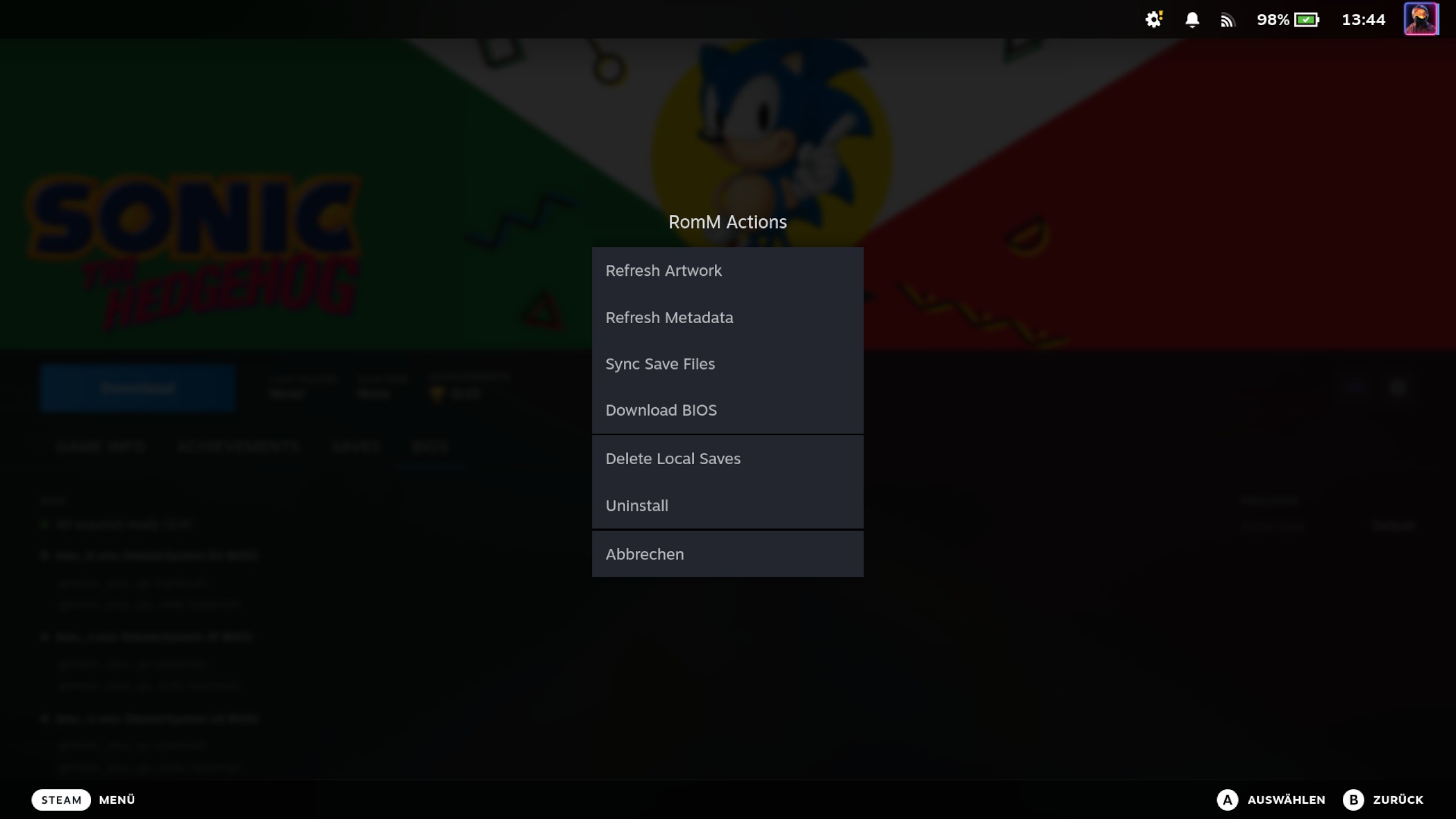
The full set of per-game actions — refresh artwork, refresh metadata, sync save files, download BIOS, and uninstall — is available from the RomM Actions menu in the game detail panel.
Download Queue
The Downloads page (accessible from the main QAM panel) shows all active and completed downloads:
- Active downloads with progress bars, plus pause/resume and cancel buttons (pause/resume only where the download is resumable — see Pausing and Resuming a Download)
- Completed, failed, and cancelled downloads with status details
- Clear Completed button to clean up the list
At most two ROMs download at the same time. If you start more, the extra ones wait their turn and begin automatically as soon as a slot frees up. Before a download starts, the plugin checks there's enough free disk space for everything already in flight, so a batch of downloads won't overcommit the SD card.
Launching Games
Select any installed game in the Steam Library and press Play. The full launch command is baked into the Steam shortcut when the game is synced or downloaded, so launching just runs that command:
- The shortcut launches RetroDECK with the correct ROM path
- RetroDECK auto-detects the system from the ROM's directory path and uses the appropriate emulator
- If you picked a per-game core, the chosen core is baked into the command and used directly
- For a multi-disc game, the disc you picked is the one that launches
If the ROM is not downloaded, pressing Play won't launch a game — download it first from the game's detail panel; the shortcut's command is filled in automatically when the download completes.
Stopping a running game
While a game is running, its detail panel shows Resume instead of Play, with a small chevron beside it. The chevron's menu holds one action: Stop Game. It asks you to confirm first, because any progress since your last in-game save may be lost.
Steam's own "Stop Game" cannot end these games. Your shortcut starts RetroDECK through Flatpak, and Flatpak launches the emulator outside the process tree Steam watches — so Steam has nothing to stop, and pressing its button does nothing at all. The plugin's Stop Game finds the emulator itself and ends it.
It ends only the game you pressed it for. RetroDECK can be running more than one thing at a time — a second game launched from another shortcut, or ES-DE opened on its own — so the plugin identifies the session by the ROM the button belongs to and leaves the rest alone. If it cannot pin down that game's session — nothing matches, or it cannot tell two sessions apart with certainty — it stops nothing and tells you so: ending someone else's game mid-save would be worse than not stopping at all. Should that happen while the game really is running, Resume stays available, and quitting from inside the emulator always works.
It asks the emulator to quit politely once, waits a few seconds for it to shut down (which is when emulators write their save file), and only forces it if it is still running after that. The polite request is deliberately never repeated: most emulators treat a second one as "quit right now" and skip writing the save entirely, which would destroy the file the first request was in the middle of saving. If you want to be certain your progress is kept, save in-game first, then stop.
Because of that, the menu item greys out and reads Stopping… while it works. Those few seconds of nothing visibly happening are normal — the emulator is writing your save. Pressing Stop again would be the very thing that discards it, so the plugin ignores a second press until the first one finishes.
Previous: Syncing Your Library | Next: BIOS Management